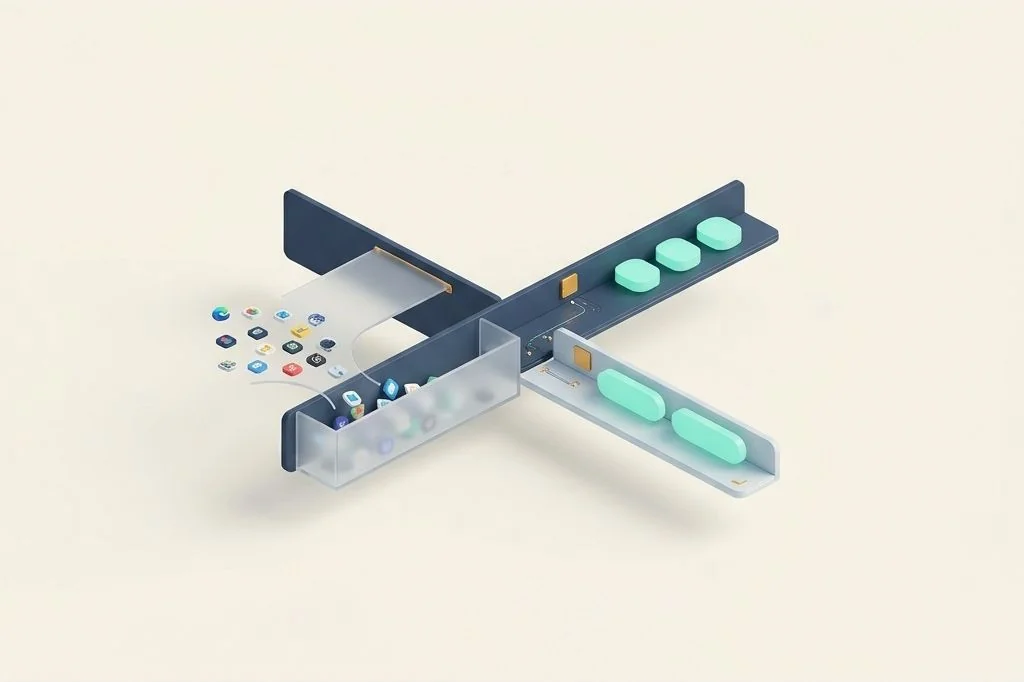
When you look up at the top edge of your computer screen, what do you see? For many professionals, that slender horizontal strip has transformed into a crowded parking lot of tiny icons. Weather widgets blink temperature updates, cloud sync tools spin in endless circles, audio mixers display miniature volume sliders, and update badges glow in persistent red dots. Behind every single one of those icons sits an active background process competing for system memory and battery power. Mastering the art of managing menu bar clutter and background daemons on mac restores visual tranquility to your display and keeps your machine running with pristine responsiveness.
Key Takeaways
Here are the fundamental rules for establishing a calm, efficient menu bar on macOS:
- The menu bar functions like a narrow kitchen spice rack; cramming forty jars onto it guarantees you will knock three over every time you reach for salt.
- Every visible menu bar icon represents an active background daemon that continuously occupies computer memory and wakes up the processor.
- Pruning unnecessary login items in system settings prevents software from silently launching every time your Mac boots up.
- Hiding secondary utility icons behind a collapsible drawer cleans your sightline while keeping occasional tools accessible.
The Kitchen Spice Rack Metaphor: Visual Overload at a Glance
To understand the toll of menu bar clutter, imagine your kitchen has a small, elegant wooden spice rack mounted directly above the cooking stove. When you first moved in, you placed four essential items on that shelf: salt, black pepper, olive oil, and a small timer. Whenever you cooked, your hand moved smoothly, grabbed what you needed, and returned to stirring the soup.
Over the years, however, every meal kit company and grocery store handed you promotional sample bottles. You lined up thirty-five bottles along that narrow ledge. Jars are double-stacked, bottles hang precariously over the lip, and some even hide the numbers on the kitchen clock behind them. Now, when you try to reach for the pepper, your eyes must sift through a forest of labels, and you accidentally bump three bottles into the boiling pan.
Your macOS menu bar suffers from the exact same dynamic. On modern laptops with camera cutouts (notches), a crowded menu bar can literally push essential application menus or utility icons completely off the screen into invisibility. Practicing minimalist computer management requires treating that top strip as sacred visual territory reserved strictly for mission-critical indicators.
The Stage Crew: Understanding Background Daemons
In computer architecture, a daemon is a program that runs silently in the background without displaying a main window. Think of a theater production. While the actors perform under the spotlights on stage, there is a crew of stagehands working behind the dark curtains. One stagehand adjusts a rope, another moves a prop table, and a third watches a sound mixer.
A few disciplined stagehands make the play run seamlessly. But imagine fifty stagehands squeezed into a narrow corridor backstage. They bump into one another, knock over props, step on audio cables, and create constant background chatter that distracts the audience. Every menu bar utility you install – from clipboard recorders and window helpers to cloud sync monitors and system monitors – is an extra stagehand milling around backstage.
Even when you never click their icons, these background daemons wake up periodically to poll network servers, check system temperatures, or scan local directories. If you want to understand how this invisible activity taxes your hardware, reviewing our breakdown of minimizing background memory footprint in mac launcher tools reveals the hidden resource cost of idle background apps.
Architectural Audit: Differentiating Daemons vs Pure Utilities
Not every background helper earns the right to occupy a permanent slot in your computer memory. Classifying your utilities into clear operational buckets allows you to make informed pruning decisions.
| Utility Classification | Operational Pattern | System Resource Draw | Recommended Action |
|---|---|---|---|
| Essential System Status | Battery state, Wi-Fi connectivity, sound volume | Native, compiled OS thread (< 15 MB) | Keep visible at all times |
| Keyboard & Window Hooks | Global shortcut listening, window snapping logic | Low (20 MB – 50 MB, event-driven) | Keep active, hide icon from menu bar |
| Continuous Sync Daemons | Cloud storage sync, backup trackers, notes syncing | Moderate to High (100 MB – 300 MB, periodic CPU) | Configure manual sync or schedule intervals |
| Decorative Information Cards | Animated weather, stock tickers, news headlines | High (150 MB – 400 MB, continuous network polling) | Remove completely; use command bar queries |
Notice how easy it is to eliminate waste once you categorize your tools. A decorative weather icon showing animated clouds requires hundreds of megabytes of memory simply to display information you could see in two seconds by glancing out your real window or typing “weather” into your command palette. If you are refining your entire layout, our guide on designing a minimalist keyboard first macos workspace explains how removing visual distractions supports sustained deep work.
Pruning the Stage: Managing Startup Items and LaunchAgents
When you install modern applications, many quietly register themselves as login items without clearly highlighting the fact. The next time you restart your Mac, twelve different software packages boot up simultaneously, bogging down your machine and prolonging startup times.
Apple provides centralized controls to audit these background helpers, as explained in the official Apple login items and background tasks documentation. Navigate to your System Settings and open the General tab, followed by Login Items. Review the list labeled “Allow in the Background” with an eagle eye. If you see software from companies you no longer use, or helper daemons for apps you only launch once a month, toggle them off immediately.
Adopting collapsible menu bar drawers
For utilities that must remain running in the background – such as your keyboard shortcut manager or encrypted backup client – you do not need their icons staring at you all day. Employ a lightweight menu bar manager that consolidates secondary icons behind a neat collapsible drawer. When you need to adjust an audio input or check a sync status, a quick hover or hotkey reveals the hidden icons; otherwise, your menu bar remains as clean and serene as a blank notebook.
Replacing menu bar monitors with on-demand palettes
Many power users clutter their top bar with CPU usage meters, fan speed gauges, and network speed graphs. While these telemetry metrics look impressive, watching numbers fluctuate provides zero practical value during creative work. Replace continuous menu bar monitors with quick keyboard commands. If your laptop feels warm, summon your central launcher, type “stats”, inspect the readings for three seconds, and close it.
Frequently Asked Questions
Does turning off background daemons break my installed apps?
No. Toggling off an application background item simply prevents the software from starting automatically when your computer turns on. The application will continue to work completely normally whenever you choose to open it yourself.
Why do some icons disappear behind the camera notch on newer MacBooks?
Modern MacBooks feature a physical camera cutout in the center of the top display. When your open application has many menu items and your menu bar has numerous utility icons, macOS automatically hides the overflowing icons behind the notch. Using an icon consolidator solves this by collapsing excess icons into a tidy expandable drawer.
How do I permanently remove zombie daemons from uninstalled apps?
When you drag an application to the trash, its background LaunchAgent files in ~/Library/LaunchAgents may remain behind. Inspect this folder inside your Library directory and delete leftover property list (.plist) files associated with apps you have already uninstalled.
Reclaiming your menu bar is like wiping clean the dashboard of your car. By banishing unnecessary background daemons and keeping only essential indicators in sight, your computer becomes a tranquil, distraction-free cockpit where your focus remains undisturbed.