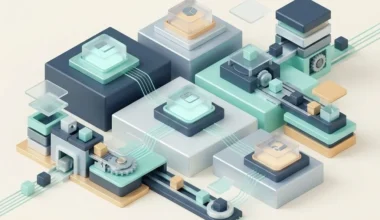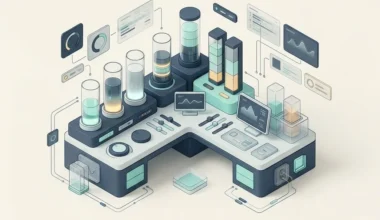
When you begin using the terminal for daily work, your screen can quickly become overrun by competing windows. You open one terminal window to run a local server, a second to watch system logs, a third to edit a script, and a fourth to run file commands. Before long, you are constantly minimizing and rearranging overlapping windows just to see what is happening. Learning terminal multiplexing concepts replaces this clutter with a calm, single-window layout organized like a Japanese bento box.
Key Takeaways
Essential insights for mastering tiled terminal workspaces on macOS:
- Multiplexing divides a single terminal window into organized, non-overlapping panes like a bento box.
- Persistent sessions stay alive in the background even if your terminal window or laptop lid closes.
- Keyboard-driven pane switching eliminates the need to reach for your mouse or trackpad.
- Custom layout presets launch your entire multi-task environment with a single command.
- Consolidating active tasks into one visible viewport preserves mental focus and eliminates window hunting.
The Bento Box Metaphor: Bringing Order to Multiple Dishes
Imagine sitting down for a balanced meal. If someone places six separate oversized ceramic plates on a tiny café table, bowls slide off the edge, cups teeter precariously, and you spend half your meal shifting dishes around just to reach your fork. The tabletop feels chaotic and stressful.
Now imagine that same meal served inside an elegant lacquered bento box. The box has four clean, proportional compartments: one for steamed rice, one for seasoned fish, one for crisp vegetables, and one for pickled ginger. Everything fits inside a single rectangular perimeter without spilling. You can see your entire meal at a glance, and your table stays completely clear.
In the terminal, a multiplexer like tmux is that bento box. As documented in the official tmux project documentation and wiki, a terminal multiplexer splits a single window into discrete horizontal and vertical compartments called panes. In the left pane, you write code; in the top-right pane, you watch a live process; in the bottom-right pane, you issue quick file commands. Everything stays locked in place without overlapping. For strategies on maximizing screen area on laptops, explore my guide on optimizing single-screen laptop setups.
The Invisible Assistant: Understanding Persistent Sessions
In a standard terminal, if you accidentally click the red close button or if your laptop battery temporarily runs out, any command running in that window is abruptly terminated. If you were compiling a large project or downloading an asset archive, the entire operation is lost.
A multiplexer changes this dynamic through session persistence. Think of the multiplexer as a dedicated workshop in your house. When you close the terminal window on your screen, you are not tearing down the workshop; you are simply turning off the room light and closing the door. The workbench, the tools, and the projects running on the table remain completely undisturbed.
When you open your terminal tomorrow morning or connect to your computer from a coffee shop, you simply reopen the workshop door. Every pane, command history, and running process appears exactly where you left it, with zero setup time required. Learn more practical approaches to building frictionless workflows at Easy Efficiency.
Keyboard Acrobatics: Navigating Without a Mouse
Reaching for your mouse to click on a different window takes about two seconds. Doing that three hundred times a day wastes ten minutes and repeatedly breaks your mental concentration. Multiplexers are engineered entirely around keyboard muscle memory.
By pressing a universal prefix key followed by a directional arrow, your cursor leaps instantly between panes. You can zoom a single pane to full screen when you need to read dense text, and shrink it back into its corner compartment when you need to check secondary data. Your hands never leave the home row of your keyboard, creating a smooth, uninterrupted working rhythm.
Furthermore, multiplexers include internal scrollback buffers. Even if a command produces ten thousand lines of rapid output, you can enter copy mode with a keystroke, navigate backward through history using standard search commands, and copy snippets without ever touching a trackpad. For tips on managing expansive widescreen spaces comfortably, review my insights on managing ultrawide monitors without fatigue.
Scripting Your Perfect Morning Layout
The ultimate power of terminal multiplexing is repeatable layout automation. You do not have to manually split panes and navigate to folders every morning like setting up furniture from scratch.
Using simple configuration scripts, you can define your ideal project layout once. When you type a single launch word, the multiplexer boots up, creates your persistent session, divides the screen into your favored bento-box compartments, navigates each pane to the correct project directory, and launches your monitoring tools automatically. Within three seconds of opening your laptop, your entire command center is primed and ready for focused creative work.
Adopting terminal multiplexing transforms how you work on macOS. You leave behind chaotic piles of overlapping windows, replacing them with a quiet, structured, and dependable workspace that stays organized all day long.
Synchronizing panes across collaborative operations offers another remarkable capability. Multiplexers permit multiple terminal panes to receive identical keyboard input simultaneously with a single toggle keystroke. If you manage several staging servers or need to inspect logs across multiple project repositories simultaneously, typing a single diagnostic command executes across all active panes simultaneously, multiplying your operational speed.
Finally, pairing terminal multiplexers with system notification hooks bridges the gap between background tasks and conscious awareness. When a long compilation or extensive file download completes inside a dormant pane, the multiplexer can ring a subtle terminal bell or trigger an alert badge in the status bar, letting you work calmly in other applications without repeatedly switching windows to check on progress.
Over time, working inside an organized multiplexer environment develops a profound sense of digital composure. You no longer battle desktop clutter or lose track of background chores; your essential terminal tools remain neatly arranged, instantly accessible, and ready for focused action.
By bringing calm geometric discipline to multiple command streams, terminal multiplexing transforms your daily Mac workflow from chaotic multitasking into clean, intentional orchestration.
Frequently Asked Questions
Do I need to install special software to use terminal multiplexing on a Mac?
While macOS includes basic window splitting in its native Terminal app, installing a dedicated multiplexer like tmux via Homebrew provides session persistence, detachable background sessions, and deep scriptability.
What happens to my multiplexer session if my internet connection drops?
Your session stays completely intact. Because the multiplexer server runs locally on the machine, losing an external network connection or SSH link does not disrupt your running processes or window layouts.
Can I customize the status bar at the bottom of a multiplexer window?
Yes. You can customize the status line to display open window numbers, active directory names, current date and time, or keep it completely blank for a minimalist, distraction-free environment.
Does running multiple panes consume extra battery power?
No. A multiplexer is extraordinarily lightweight, using less memory than a single browser tab. It consolidates multiple command streams into one terminal renderer, often saving battery compared to running several separate window processes.
Embracing terminal multiplexing brings structured calm to your macOS command workflow, giving you an uncluttered, persistent, and lightning-fast digital command center.