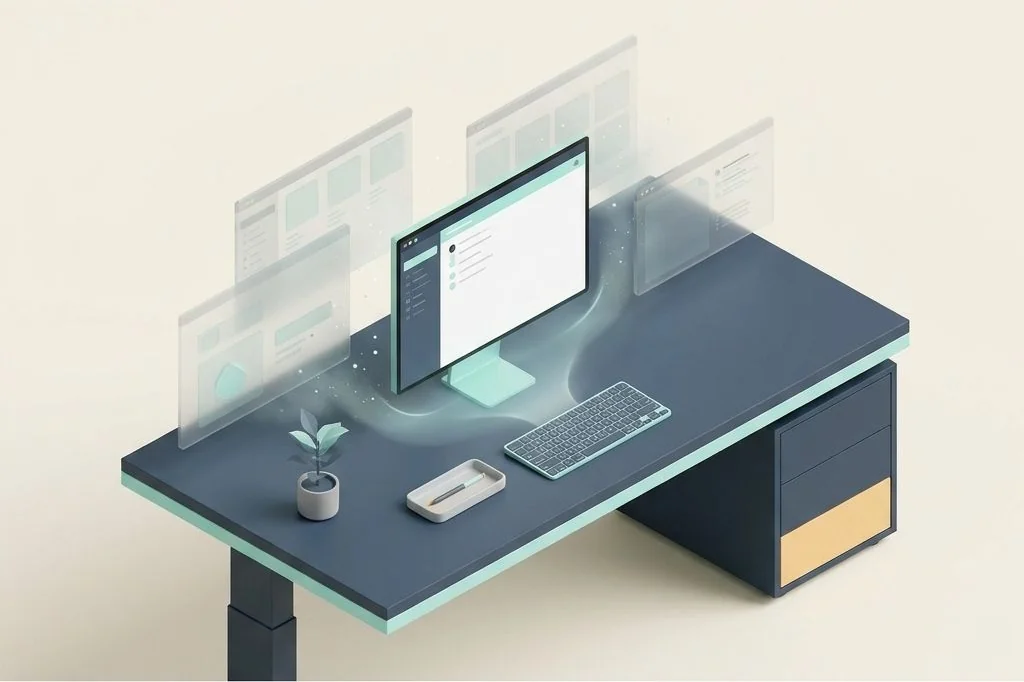
If you leave your physical desk covered in half-eaten snacks, unwashed coffee cups, tangled cables, and piles of opened mail, you feel an immediate sense of mental heaviness the moment you walk into the room. Yet many people subject their brains to that exact same environment digitally every single day. They leave thirty-five windows open across five spaces, pepper their desktop with loose screenshot files, and work surrounded by blinking notification dots. When practicing ambient window management focus hygiene, the goal is clearing away background visual static so your mind can rest in pure clarity.
Key Takeaways
Here are the fundamental practices for maintaining visual hygiene and mental focus on macOS:
- Treat background windows like ambient background noise; even when you are not looking at them, they drain mental energy.
- Adopt an active window dimming habit that softens inactive applications into gentle, low-contrast silhouettes.
- Banish loose desktop icons completely, treating the physical desktop wallpaper as a clean wall rather than a junk drawer.
- Establish an end-of-day digital reset routine that quits non-essential tools and closes temporary tabs.
- Silence non-critical notification banners and dock badges that trigger involuntary eye darting.
- Pair visual hygiene with keyboard-first window geometry to keep your screen organized without continuous manual effort.
The Kitchen Countertop Metaphor
Imagine cooking dinner in a clean kitchen. When you slice onions on a wooden cutting board, you use the board, wipe the knife, and set it down. A disciplined home chef clears away vegetable peelings and washes bowls as they go. When dinner is served, the countertop is wiped clean, and cooking is an enjoyable, relaxing experience.
Now imagine cooking in a kitchen where nobody has washed a dish in two weeks. Pots are crusted with sauce, cutting boards are stacked with old scraps, and every surface is sticky. Preparing a simple meal becomes an exhausting obstacle course. Your Mac desktop is that countertop. When you allow dozens of inactive windows and stray documents to accumulate, every creative act requires pushing through digital grime on ezefficiency.com.
The Cognitive Toll of Visual Noise
Human vision evolved to detect movement and contrast in peripheral sight. In nature, a flickering shadow or sudden flash of color in your peripheral vision signaled potential danger. In your digital workspace, every unread badge, flashing chat indicator, and high-contrast window border in your peripheral vision triggers those exact same ancient survival mechanisms.
Neuroscience research from institutions like the Princeton Neuroscience Institute demonstrates that multiple visual stimuli competing within your field of view restrict cognitive processing capacity. When your screen is packed with overlapping layers, your brain continuously spends energy actively ignoring those irrelevant edges. Over an eight-hour workday, this active suppression creates mental exhaustion that feels like physical fatigue. Structuring your screen into clean, predictable zones as described in macos window management architecture removes that invisible drain.
Ambient Dimming and Spotlight Focus
When you attend a theatrical play in a dark auditorium, the stage lights illuminate the lead actor brightly while the rest of the theater remains in soft shadow. Your eyes are naturally drawn to the light, making it effortless to follow the story without distraction from neighboring audience members.
You can apply this exact theatrical lighting technique to your Mac desktop. Using ambient focus utilities or native window dimming features gently lowers the contrast and brightness of every inactive background window by thirty or forty percent. Your active writing document or code editor stands out with crisp, vibrant clarity, while surrounding reference panels fade softly into the background. Your peripheral vision perceives them as calm, muted shapes rather than competing bright lights. Discover how this complements laptop displays in our guide on maximizing screen real estate on a 13-inch or 14-inch macbook.
Banishing the Desktop Junk Drawer
The desktop folder on macOS is often the first place downloaded files, screenshots, and temporary PDFs land. Within a few weeks, the glass becomes covered with an unsightly grid of miniature icons that obscures your wallpaper and makes finding any specific file impossible.
A true focus hygiene discipline treats the desktop surface as a sacred, empty space. Enabling macOS Stacks groups files automatically by type, collapsing twenty loose screenshots into a single neat stack with one click. Even better, configuring your screenshot utility to route images directly into a hidden temporary folder keeps your desktop pristine at all times. When you sit down at your Mac in the morning, seeing a clean, empty wallpaper signals to your brain that you are starting with a calm, unburdened mind. You can maintain this cleanliness across your top panel by reviewing our instructions on designing a zero clutter menu bar for ultrawide and laptop screens.
Eliminating Window Hoarding with the Daily Reset
Window hoarding is the digital equivalent of holding onto old newspapers because you think you might read them someday. Users leave forty browser tabs and twelve text notes open because they fear losing a valuable piece of information. In reality, you almost never revisit those buried tabs, and their presence merely clutters your memory.
Building an end-of-day reset routine takes less than three minutes and yields immense peace of mind:
- Bookmark or discard: If a browser tab contains an article you genuinely need, save it to a read-later queue; otherwise, close it without guilt.
- Quit idle applications: Press Command plus Q to close communication tools, media players, and utilities that have finished their daily work.
- Sweep virtual rooms: Consolidate any stray windows back into their assigned spaces as detailed in our guide on organizing mac spaces by work context instead of chaos.
To ensure that unwanted applications do not re-launch automatically tomorrow morning, audit your startup apps using our guide on auditing login items to accelerate cold boot times on macos.
Curating Notification Hygiene and Quiet Hours
Nothing shatters ambient focus faster than a notification banner sliding in from the top corner of your screen accompanied by a sharp pinging chime. Most software applications enable notifications by default, assuming their updates are the most important event in your day.
Reclaiming your attention requires turning off notifications for ninety percent of your software. Calendar appointments and direct personal messages can remain enabled, but news updates, marketing newsletters, and social media reactions should be silenced permanently. Setting your Mac to automatically enter a dedicated Focus mode during your prime morning creation hours ensures that your screen remains a peaceful sanctuary where deep thinking thrives uninterrupted.
Frequently Asked Questions
Does hiding desktop icons improve Mac performance?
Yes. macOS treats each individual icon on your desktop as a separate window with its own preview thumbnail. Having hundreds of loose files on your desktop consumes graphic memory and can noticeably slow down window switching and file dialogues.
How do I quickly hide all background windows during deep work?
Pressing Command plus Option plus H instantly hides every background application on your Mac except the one you are currently using, clearing away peripheral clutter in a split second.
What is the difference between minimizing and hiding a window?
Minimizing (Command plus M) shrinks an individual window down into your Dock with an animation, requiring a mouse click to restore. Hiding (Command plus H) conceals the entire application instantly, allowing you to bring it back immediately with Command plus Tab.
By establishing calm visual hygiene and clearing away background static, you transform your Mac into a tranquil digital workshop that preserves your energy and sharpens your daily craft.