You drag an old photo editing program or game to the Trash, empty the bin, and assume the application has completely vanished from your computer. But weeks later, your laptop cooling fans spin up while idling, and your system monitor displays mystery processes with cryptic names consuming memory and processor cycles. In many instances, deleting an application icon leaves behind silent background helpers that continue launching automatically every time you boot your machine. Mastering the process of identifying and disabling stealth background daemons on mac allows you to root out these digital ghosts, reclaim inactive system memory, and restore pristine performance to your hardware.
Key Takeaways
Here are the fundamental lessons for managing background daemons on macOS:
- Background daemons resemble unused electrical appliances plugged into hidden basement outlets; even while ignored, they draw continuous electrical power.
- Dragging an application to the Trash often leaves behind orphan configuration scripts inside your system Library folders.
- LaunchAgents run inside your user session, while LaunchDaemons execute at the root system level before anyone logs in.
- Auditing background tasks restores valuable desk space (RAM) and prevents phantom battery drain on portable laptops.
The Hidden Basement Appliance Metaphor
To understand what a background daemon actually is, imagine you purchase a charming two-story house. In the kitchen, you have your visible appliances: a stove, a blender, and a kettle. When you want hot water, you turn on the kettle, watch it boil, and turn it off. This is how normal applications like text editors and web browsers operate.
Now imagine you walk down into the dark basement of this house. Hidden behind a stack of cardboard boxes, you discover three electrical gadgets left behind by the previous homeowner: an old dehumidifier humming in a corner, an electronic pest repeller clicking every three seconds, and a water circulation pump running continuously. You never visit the basement, and you never use those gadgets. Yet every month, your electrical utility bill is forty dollars higher because those stealth appliances draw power twenty-four hours a day.
On your Mac, background daemons are those hidden basement gadgets. They have no visible window and no icon in your dock. They sit silently in the background, waking up every few minutes to check for software updates, sync diagnostic telemetry to remote servers, or monitor hardware states. Embracing practical digital efficiency principles means shining a bright flashlight into that digital basement and unplugging the gadgets you no longer need.
Understanding LaunchAgents and LaunchDaemons
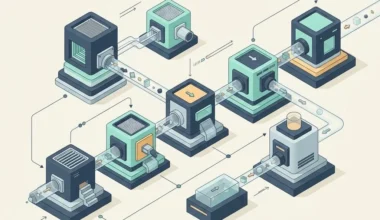
In the architecture of macOS, background helper programs are managed by a central supervisor called launchd. This supervisor reads special text files known as property lists (with the file extension .plist) stored in specific system folders. There are two primary types of background helpers you must understand:
LaunchAgents (user-level helpers)
LaunchAgents live in your personal user directory (~/Library/LaunchAgents). They activate only when you log into your user account. These helpers typically manage user-facing utilities: clipboard history recorders, cloud storage sync clients, keyboard shortcut listeners, and application update checkers. If you are also consolidating your top bar, our guide on consolidating background system monitors into a single tray explains how to tame the menu bar icons linked to these agents.
LaunchDaemons (system-level services)
LaunchDaemons live in the root system directory (/Library/LaunchDaemons). They start the instant your Mac turns on, even before anyone types a password on the login screen. These daemons handle low-level system tasks: hardware virtualization drivers, VPN network tunnels, corporate security monitors, and peripheral printer management. For a comprehensive audit of boot items, exploring auditing login items to accelerate cold boot times on macos provides a roadmap for faster startup performance.
Architectural Comparison: Essential vs Orphan Daemons
Distinguishing between mission-critical system daemons and orphan third-party residue prevents you from disabling essential operating system services.
| Daemon Category | File Location Prefix | Typical Purpose | Recommended Action |
|---|---|---|---|
| Apple System Daemons | com.apple.* | Time Machine, audio subsystems, display scaling | Never disable or modify |
| Active Productivity Helpers | com.developername.* | Active clipboard managers, window snapping engines | Keep active if tool is used daily |
| Third-Party Auto-Updaters | com.vendor.update* | Silent background software update pollers | Disable; update apps manually instead |
| Orphan Uninstalled Residue | com.deletedapp.* | Leftover scripts trying to run deleted binaries | Delete property list file immediately |
Notice how easy it is to identify orphan tasks. If you see a file named com.adobe.acc.helper.plist, but you uninstalled Adobe Creative Cloud six months ago, that background helper is an orphan ghost. It wakes up every morning, attempts to launch a binary that no longer exists, logs an error to your system console, and wastes processor cycles repeating the attempt. Apple documents terminal tool execution in their official Apple Terminal commands guide.
Step-by-Step Audit: Evicting Zombie Processes Safely
Cleaning out these hidden basement gadgets requires a deliberate, step-by-step audit. You do not need to install dangerous registry cleaners or third-party cleaner tools that install their own daemons. You can inspect and clean your system using built-in macOS tools.
Step 1: Inspect the Login Items settings panel
Open System Settings, select General, and click Login Items. Scroll down to the section labeled “Allow in the Background”. Here, macOS lists every registered background task by developer name. Review the toggles. If you see software from peripheral hardware you gave away three years ago or games you completed last winter, flip the toggle to Off. This prevents the supervisor from launching the task at startup.
Step 2: Check your user LaunchAgents folder
Open Finder, press Command-Shift-G to summon the Go to Folder prompt, and enter ~/Library/LaunchAgents. Review the list of .plist files. Each file is named in reverse-domain syntax, clearly identifying the company and tool. If you spot a file belonging to software you deleted, move that specific .plist file to the Trash. Restart your computer, and that background ghost will never launch again.
The Desk Space Savings: Reclaiming Inactive RAM
To understand the tangible benefit of this cleanup, return to our core metaphor of computer memory (RAM) as your physical desk surface. Every background daemon you eliminate clears a corner of that desk. An updater tool might only take twenty megabytes, and a crash reporter might only take fifteen megabytes.
But when you eliminate ten of these zombie helpers, you reclaim several hundred megabytes of high-speed memory. That recovered space means your computer does not need to compress your active web browser tabs or swap active documents onto the solid-state drive when you open a heavy photo or video project. Your machine stays cool, responsive, and quiet under load.
Frequently Asked Questions
Can deleting a LaunchAgent file damage my operating system?
No, provided you stay inside your user directory (~/Library/LaunchAgents) and only delete files belonging to third-party software you recognize. Operating system files are protected by System Integrity Protection and will not be affected by user-level cleaning.
Why do applications leave these background files behind?
When you drag an application to the Trash, macOS removes only the main application bundle from your Applications folder. Because macOS lacks a mandatory uninstaller framework, configuration files and background helper scripts stored in Library folders remain untouched unless explicitly deleted.
How often should I audit my background daemons?
A quick quarterly audit – taking roughly five minutes every three months – is plenty to keep your system lean and prevent gradual performance degradation over years of software experimentation.
Taming hidden background daemons is an essential discipline for anyone who values a swift, silent machine. By evicting zombie processes and disabling unneeded helpers, your Mac operates with the speed and lightness it possessed on the day you first lifted the lid.