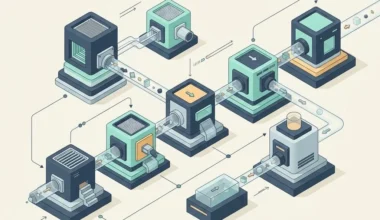
Every morning, millions of computer users sit down and perform the exact same manual rituals: emptying the trash folder, checking for software updates, clearing screenshot clutter from the desktop, and restarting memory-heavy applications. Doing this by hand every day is like walking out to your front lawn every single morning with a tiny plastic cup to water every blade of grass individually. Mastering automating daily tasks shell scripts turns those chores into an automatic sprinkler system that runs while you sleep.
Key Takeaways
Core practices for building dependable automated maintenance routines on macOS:
- A shell script is simply a plain-text recipe of commands executed sequentially by your computer.
- Automating routine file organization prevents desktop clutter from accumulating into overwhelming chaos.
- Built-in macOS scheduling tools run maintenance routines quietly without requiring open terminal windows.
- Adding log outputs gives you an effortless ledger to verify that automated jobs completed successfully.
- Hands-free system hygiene keeps your Mac feeling brand new every morning without manual effort.
The Sprinkler Metaphor: Why Manual Maintenance Drains Energy
Think about taking care of a beautiful garden. If you have to wake up at dawn every day, turn on a outdoor spigot, drag a heavy rubber hose across the yard, stand by the hydrangeas for ten minutes, move the hose to the roses, and drag it back to the shed, you quickly resent gardening. You start skipping days because you are running late for an appointment, and within three weeks, your grass turns brown and weedy.
A smart homeowner installs an in-ground sprinkler system with a timer. You program the clock once. Every morning at five, the pop-up valves quietly emerge, spray fresh water across the yard for fifteen minutes, and retract beneath the sod before you even pour your first cup of tea. Your lawn remains emerald green effortlessly.
Shell scripts are the sprinkler system of macOS. A shell script is not complex programming; it is simply a plain text file containing the exact same English commands you would otherwise type manually one by one. As detailed in the Apple Developer documentation on launchd and scheduled jobs, macOS includes a native scheduling engine designed specifically to run these maintenance recipes reliably in the background. To see how keeping your visual environment ergonomic complements automation, check my guide on choosing native resolution versus scaling.
Writing the Morning Recipe: What a Maintenance Script Does
Let us look at a typical morning maintenance script. When I wake up and open my MacBook lid, I want my system to feel as fresh and organized as the day I took it out of the box. My daily script performs four simple chores:
- Desktop Sweeping: Moves stray screenshots and download files older than three days into an archive drawer so my desktop stays clean.
- Package Updates: Checks my command-line tool shed and downloads bug fixes silently.
- Cache Flushing: Purges temporary font caches and web download leftovers that waste SSD space.
- Status Recording: Writes a single timestamped line to a private morning ledger confirming everything is healthy.
Because the script runs in the background, it never interrupts my workflow. No windows pop open, no bouncing dock icons demand my attention, and no progress bars steal my cursor focus. Explore more actionable techniques for building clean digital habits at Easy Efficiency.
The Safety First Rule: Building Resilient Scripts
When you automate tasks that delete or move files, you must follow strict safety protocols. A poorly constructed script can accidentally delete the wrong folder if it encounters an unexpected empty space in a file path.
I always adhere to two golden safety principles when drafting maintenance scripts:
- Explicit Paths: Always name full, unambiguous addresses rather than relying on relative dots, ensuring the script always knows which folder drawer it is opening.
- Archive Instead of Delete: Instead of permanently vaporizing files, have the script move them to a dated archive box inside your trash folder. This gives you thirty days to change your mind before anything is permanently erased.
These simple guardrails ensure that automation brings complete peace of mind rather than anxiety. For tips on managing screen space comfortably on compact laptops, review my walkthrough on maximizing screen space on compact MacBooks.
Scheduling Without Hassle: The Background Clock
A script sitting in a folder only runs when you tell it to. To make it truly hands-free, you connect it to macOS native scheduling clock. While older Unix systems used cron, modern macOS uses a robust service called launchd.
The beauty of launchd is that it handles laptop sleep gracefully. If you schedule a job for three in the morning, but your laptop lid was closed because you were asleep in bed, launchd does not fail or give up. The moment you open the lid at seven in the morning, it notices the missed appointment and executes the maintenance routine immediately while you pour your morning coffee.
This reliability makes automated maintenance completely transparent. You never have to remember when you last tidied your folders or cleaned up temporary caches; your computer simply stays spotless on its own.
Automating external backup synchronization turns disaster recovery into a background certainty. Using lightweight command-line synchronization tools like rsync inside a scheduled script, your important documents, active project drafts, and personal notes mirror to an external encrypted drive or local storage vault without manual copying. Because rsync only transfers modified bytes rather than recopying entire files, daily syncs finish in seconds.
Clean script architecture also benefits from modular separation. Rather than bundling twenty distinct maintenance chores into one massive script, I create smaller single-purpose scripts – one for cache cleanup, one for document archiving, and one for backup mirroring. A master coordinator script calls each task in sequence, making it trivial to enable, disable, or adjust individual routines without risking the rest of the maintenance pipeline.
Reviewing script output logs once a month ensures that your background maintenance continues to perform without silent failures. By checking the exit codes and timestamped log entries, you can easily verify that storage volumes mounted correctly, file permissions remained intact, and no orphaned processes were left lingering behind.
Frequently Asked Questions
Do I need administrative permissions to run personal shell scripts?
No. Scripts that organize your personal files, update user packages, or tidy your desktop run under your standard user account without requiring administrative passwords or system modifications.
How do I make a text file executable in macOS?
You use the change-mode command with the plus-x flag in the terminal. This tells macOS that the text file is an executable script rather than a standard reading document.
Can a shell script send a desktop notification when it finishes?
Yes. By utilizing the built-in macOS osascript command, a shell script can trigger a native notification banner that slides out from the top-right corner of your screen when a long task completes.
What happens if my script encounters an error while running in the background?
You can configure your script to redirect error outputs into a private log text file. If something behaves unexpectedly, you can open the log to read the exact error message and timestamp.
Automating daily maintenance with shell scripts turns repetitive computer upkeep into an effortless, invisible background habit, keeping your Mac running fast, calm, and dependable every single day.