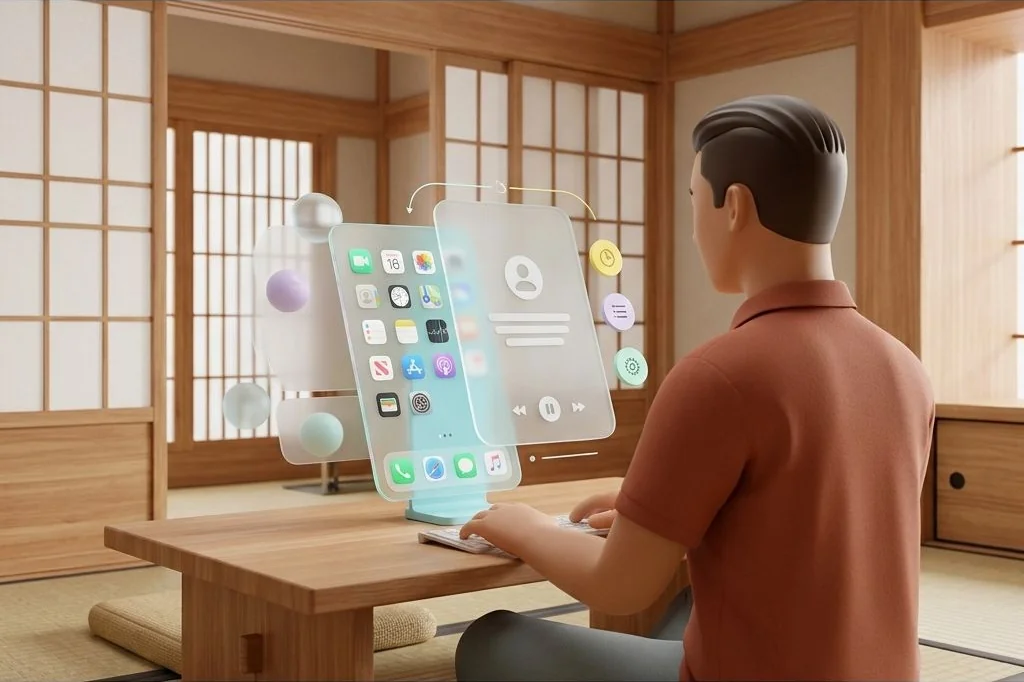
Modern smartphones are masterfully engineered to hijack your attention. Every red notification badge, brightly colored icon, and unexpected news banner is an invitation to abandon your train of thought and waste twenty minutes scrolling. Relying on sheer willpower to ignore these visual temptations while working is an uphill battle. By configuring intelligent mobile focus mode automation, I turn my phone into a distraction-free digital assistant that automatically hides noisy apps, swaps home screens, and silences non-urgent alerts whenever I sit down to do deep work.
Key Takeaways
Essential techniques for automating distraction shields on your handheld device:
- Treat focus modes like lowering the blinds and closing the study door: shut out the noisy hallway so you can think in peace.
- Tie focus triggers to calendar events, work locations, or desk NFC tokens rather than toggling settings manually.
- Swap home screens automatically to display only essential work utilities during business hours, hiding games and social feeds completely.
- Configure notification filters to let critical family calls through while holding all casual group chats for scheduled delivery breaks.
The Library Study Room Metaphor
Imagine trying to read an important technical book in the middle of a noisy shopping mall arcade. Flashing neon lights blink in your face, loud music thumps through the air, and strangers tap you on the shoulder every ninety seconds. That is what carrying a standard, unconfigured smartphone feels like during a workday.
Now imagine stepping into a private study room on the top floor of a silent library. You close the thick oak door, lower the window shades, turn on a single warm desk lamp, and set out only the one notebook you need. The world outside keeps buzzing, but inside your study room, absolute calm reigns.
On Easy Efficiency, I build digital systems that give you that same calm feeling. Just as I structure separate digital workspaces on my computer in my guide on organizing Mac spaces by context, mobile focus modes let you swap your entire phone personality based on what you are doing right now.
Automating Screen Switching and Visual Decluttering
The visual design of your home screen influences your habits more than you realize. If your primary screen displays social icons with little red badges shouting for attention, you will tap them unconsciously when your brain encounters a hard problem.
Modern operating systems allow you to tie custom home screen layouts directly to focus profiles. During my deep work blocks, my phone automatically hides all standard home screens and reveals a single, minimalist page. This work layout contains only four clean icons: my calendar, task manager, notes inbox, and two-factor authentication tool.
There are no social feeds, no shopping apps, and zero unread count badges. If I pick up my phone out of habit, there is simply nothing entertaining to look at, prompting me to put the device right back down. In my foundational guide on mobile automation architecture, I explain how these visual boundaries keep your phone memory and attention span entirely clear.
Comparing Focus Mode Activation Triggers
To ensure focus modes engage consistently without requiring manual effort, evaluate which automation trigger best fits your daily rhythm:
| Activation Trigger | Behavior | Reliability | Recommended Scenario |
|---|---|---|---|
| Calendar Schedule Gate | Enables when a deep work event begins | High | Scheduled project sprints, client meetings |
| Desk NFC Sticker | Taps phone upon sitting at work desk | Instantaneous | Home office transitions, creative desk work |
| Workplace Geofence | Engages when entering office building | Moderate | Commuting to physical co-working spaces |
| App-Launch Trigger | Activates when opening a writing tool | High | Focused drafting sessions, code reviews |
For most creators, tying focus modes to calendar blocks or a simple desk NFC tag provides the cleanest experience. As soon as you sit down and put your phone on its charging pad, the focus shield locks into place automatically.
Smart Notification Filtering and Emergency Whitelists
A focus mode that blocks every single call makes you anxious about missing real emergencies, causing you to check your phone repeatedly anyway. The solution is creating strict, intentional communication filters.
Official setup documentation from the Apple iPhone Focus Support Guide outlines how to configure allowlists that permit calls from immediate family members while completely muting marketing alerts and casual text threads. Furthermore, enabling repeated-call bypass ensures that if anyone calls twice within three minutes for a genuine emergency, the second call rings through loudly.
Knowing that true emergencies will reach you gives you the mental peace required to let your phone sit across the room while you immerse yourself in meaningful creative work.
Customizing Grayscale Color Filters for Cognitive Calm
Beyond reorganizing your app icons, one of the most effective sensory tricks I use during intense work blocks is automating a system grayscale display filter. App designers specifically pick candy-like saturated reds, electric blues, and vivid yellows to stimulate your dopamine centers every time you glance at your screen.
By pairing your focus profile with an automated color tint shortcut, your screen shifts instantly into calming black and white whenever work hours commence. Suddenly, looking at an app icon feels no more exciting than reading a plain paper spreadsheet. Your urge to open feeds for a quick visual reward disappears completely because the screen no longer provides sensory stimulation.
When your scheduled focus session concludes, your shortcut restores standard vibrant colors automatically. This sensory contrast creates an unmistakable psychological boundary between focused deep work and relaxed personal time.
Scheduled Notification Batches and Summary Windows
What happens to all the routine messages that arrive while your focus shield is up? Rather than letting them buzz your pocket one by one throughout the afternoon, instruct the operating system to collect them in an automated holding tray.
I configure scheduled notification summaries to deliver non-urgent alerts twice a day: once during my midday lunch break, and once at five in the evening when my workday concludes. The phone organizes the alerts into neat, collapsed bundles that I can scan in sixty seconds. This batches dozens of micro-interruptions into two calm, controlled check-in periods, protecting your focus while ensuring you remain completely up to date.
Frequently Asked Questions
Can my mobile focus mode automatically sync across my computer and tablet?
Yes. Enabling cross-device synchronization allows a focus profile initiated on your phone to simultaneously silence alerts on your laptop and tablet, creating a unified quiet workspace.
Will people who text me know that my phone is silenced?
Modern mobile platforms feature optional focus status sharing, which displays a polite notice to contacts indicating you have notifications silenced, helping manage response expectations naturally across your professional and personal network.
How do I access a hidden app during a focus mode if I genuinely need it?
Hidden apps remain installed inside your device filing cabinet. You can always access them through the global app library or search bar, ensuring you are never truly locked out of your tools.
Does switching focus profiles consume extra battery power?
No. Focus state switches are lightweight configuration changes handled directly by native operating system daemons, causing zero measurable impact on battery longevity or processor temperature throughout the day.
Automating your focus modes transforms your smartphone from an attention-stealing distraction into a protective shield that defends your deepest, most valuable creative hours.