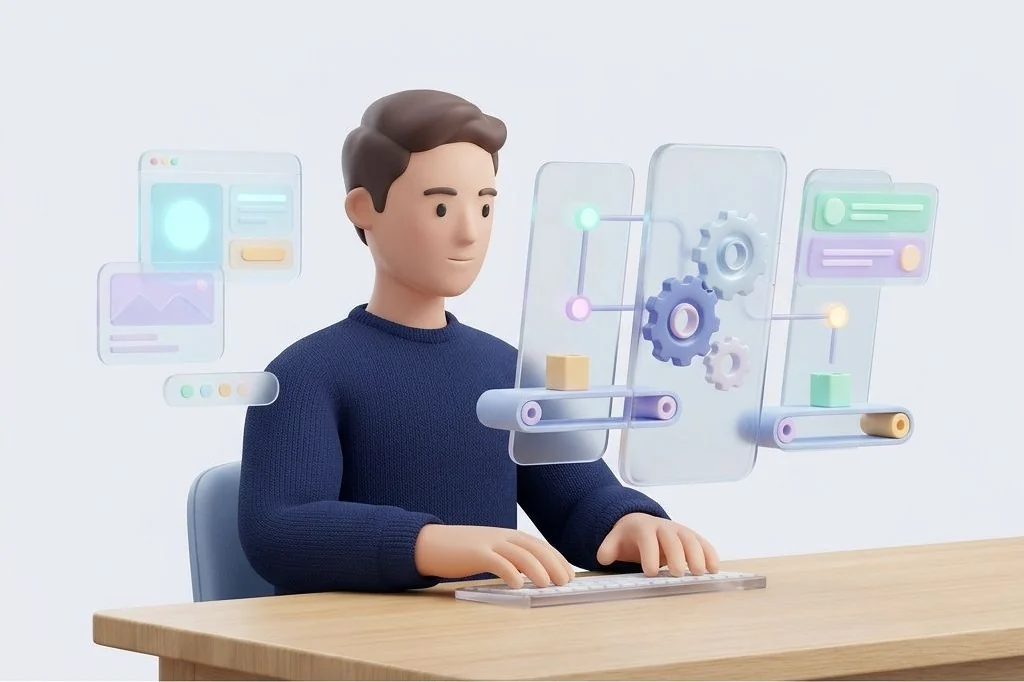
Most people treat their smartphones like a messy backpack stuffed with random apps, buzzing notifications, and forgotten browser tabs. When I set up my personal phone, I design it like a well-oiled mechanical workshop. Instead of tapping glass all day to copy text, adjust brightness, or log daily receipts, I use a disciplined mobile automation architecture. It lets small digital conveyor belts do the heavy lifting in the background while keeping the phone cool and responsive.
Key Takeaways
Practical principles for setting up clean mobile routines without bogging down your phone:
- Think of mobile automation like a physical mail conveyor belt: when a trigger drops a letter in the box, the machine pushes it to the right shelf automatically.
- Separate your system routines into event-driven triggers rather than constant polling loops to preserve battery life.
- Use your phone memory like a clear desk surface: load data only when an automation runs, then clear the workspace immediately.
- Build modular shortcuts that perform one simple job well, then link them together rather than building giant, fragile scripts.
Understanding Your Phone as a Physical Workshop
To build automations that last, I find it easiest to explain how phone hardware works using everyday physical objects. Imagine your phone memory, also known as RAM, is a wooden work desk. The bigger the tabletop, the more papers and tools you can spread out at once without bumping elbows. But if you leave fifty open books and three coffee mugs sitting on the desk all day, you run out of room to write a single clean sentence.
Your internal storage is the metal filing cabinet in the corner. It holds all your old photos, archives, and installed apps securely behind closed drawers. It takes a little longer to open a drawer and grab a folder, but items inside stay safe for years. On Easy Efficiency, I teach people how to keep the desk clear by putting inactive tools back into the filing cabinet automatically.
When you build routines on iOS Shortcuts or Android Tasker, your goal is to let small robotic helpers run across the desk, do one fast task, put the paper away in the cabinet, and vanish. When automations linger and constantly check for updates, they act like noisy home appliances left plugged in all night, spinning their motors and draining the battery.
The Two Main Automation Engines Compared
Depending on which phone pocket you carry, the underlying engine handles background tasks differently. Understanding these architectural styles helps you avoid setting up routines that fail when your screen turns off:
| Automation System | Operating Model | Resource Footprint | Best Use Case |
|---|---|---|---|
| Apple Shortcuts (iOS) | Sandboxed intent triggers, managed by system daemon | Zero idle battery drain, suspended when inactive | Clean quick capture, focus states, inter-app sharing |
| Tasker (Android) | Continuous background listener service | Low to moderate battery usage depending on sensors | Deep hardware toggles, file system sync, custom intents |
| Automate / Macrodroid | Visual flowchart block model | Lightweight background service | Visual troubleshooting, logic branching |
| Native OS Routines | Built-in manufacturer rules (Samsung Modes) | Optimized by device firmware | Scheduled device silence, simple bedtime profiles |
Apple Shortcuts operates like a sealed pneumatic tube. The operating system only wakes the script up when an explicit event occurs, such as tapping an NFC tag or reaching a specific time. Tasker behaves more like a night watchman walking the hallways. It can monitor system sensors continuously, but you must instruct it carefully so it does not check the door locks five hundred times a minute.
Building Event-Driven Triggers Instead of Constant Checkers
The single biggest mistake I see beginners make is setting up automations that check conditions every sixty seconds. For example, asking an app to check your location constantly to see if you arrived at the grocery store will empty your battery before lunchtime. That is like paying a messenger to sprint back and forth to your front door every ten seconds to ask if the mail arrived.
A smart architecture relies on passive geofencing or physical contact. I stick an inexpensive NFC tag on my car dashboard. When my phone touches the tag, the operating system triggers a routine instantly. It reads the tag, switches my audio output, launches navigation, and goes right back to sleep. For a deep look at setting up location and touch triggers, read my guide on automated trigger design for mobile devices.
Passive triggers consume virtually zero power. The phone hardware already listens for cell tower handshakes and NFC radio frequencies at the chip level. Tapping into these native hardware signals makes your automation feel like magic without costing battery percentage.
The Modular Building Block Strategy
When I design desktop shell scripts, as discussed in my guide on automating daily tasks with shell scripts, I never write one giant file that handles email, calendar, and backups simultaneously. The same wisdom applies directly to phone shortcuts.
I build tiny, specialized shortcut modules:
- The Ingest Module: Takes a piece of incoming text or a web link and formats it cleanly.
- The Storage Module: Appends formatted text to a daily markdown file inside local storage.
- The Alert Module: Sends a discreet silent notification confirming the task completed.
When I want to create a new routine, I simply connect these small blocks like plastic building bricks. If I ever decide to change where my notes are saved, I update the storage module once, and every shortcut in my system updates automatically. This modular mindset mirrors the principles in command chaining and piping, where small, reliable utilities join together to form powerful systems.
Managing Clipboard Trays and Temporary Data
Your clipboard is like a little magnetic tray sitting right beside your desk. You tear off a scrap of paper, write a phone number or a tracking code on it, and stick it to the tray. But if you never clear the tray, you accidentally paste yesterday’s grocery list into an important email.
In a solid mobile architecture, automations should pass information directly through variables or custom URL parameters rather than dumping everything onto the global clipboard. Official developer documentation from the Apple Developer Library highlights that keeping clipboard access bounded protects user privacy and stops rogue apps from snooping on sensitive tokens. When my routines finish running, I always include a final command that clears temporary variables out of phone memory.
Frequently Asked Questions
Do mobile automation apps run when my phone screen is locked?
Yes, provided the actions do not require secure user confirmation like biometric verification or camera access. Simple file updates, notifications, and audio settings run smoothly while the device stays asleep in your pocket.
Can running too many shortcuts slow down my daily phone performance?
Only if you run scripts that stay open in memory or loop endlessly. Event-driven shortcuts that run in two seconds and quit leave zero footprint on your phone processor and memory.
How can I back up my mobile automations so I never lose them?
Export your shortcuts or Tasker profiles as standalone files or share links. I save mine directly into a folder inside my local filing cabinet synced across personal cloud storage.
Is it better to use native manufacturer routines or third-party apps?
Start with native manufacturer routines for basic bedtime and driving modes because they integrate cleanly with system power management. Switch to third-party tools when you need custom file handling or web API connections.
Treating your mobile phone as a structured workshop transforms it from a source of daily distraction into a quiet, reliable assistant that handles repetitive chores effortlessly.