Watch a concert pianist performing a musical masterpiece. Both of their hands rest comfortably on the black and white keys, fingers moving with fluid rhythm and effortless grace. The pianist never pauses mid-song to lift their right arm, reach across the stage, and manually nudge a music sheet two inches to the left. If they had to do that after every musical phrase, the melody would constantly break apart into awkward pauses. Yet, when we use our personal computers, we do that exact broken dance all day long. Every time you reach for your mouse to move an application window, you break your mental rhythm. Embracing keyboard driven window management for faster desktop workflows keeps both of your hands anchored to the keyboard keys, turning window manipulation into an instinctive physical reflex.
Key Takeaways
Here are the primary principles for steering your desktop entirely through keyboard commands:
- Moving your hand between keyboard and mouse burns nearly two seconds of physical and mental focus every time.
- A dedicated modifier key, often called the Super or Hyper key, acts as the master steering wheel for your windows.
- Directional home row navigation allows you to hop between tiled apps as naturally as reading lines on a page.
- Preset layout shortcuts swap, resize, and minimize panes without delicate mouse border dragging.
- Building keyboard habits creates fluid typing momentum that reduces physical wrist strain over long work sessions.
The Hidden Cost of Leaving the Home Row
In classical typing education rooted in touch typing, students learn to keep their index fingers anchored to the small raised bumps on the F and J keys. This posture is called the home row. From this home position, every letter, number, and punctuation mark sits within a micro-reach of your fingertips. You can draft an entire five-page essay without your palms ever shifting away from the wrist rest.
The moment you need to reference a second document, that harmony shatters. Your right arm swings twelve inches to the side, your palm grabs a plastic mouse, your eyes search the screen for a tiny cursor arrow, and your index finger holds down a button while dragging a window edge. Once you release the mouse, your arm swings twelve inches back, your eyes search the keyboard to locate the F and J bumps, and only then do you resume typing.
Doing that once takes about two seconds. Doing that thirty times an hour wastes a full minute of pure physical transition. Over a year of full-time digital work, that constant arm swinging adds up to dozens of lost hours and unnecessary strain on your shoulder and wrist tendons. Implementing structured desktop workflow ergonomics protects both your physical comfort and your creative flow.
Anatomy of a Keyboard Window Control System
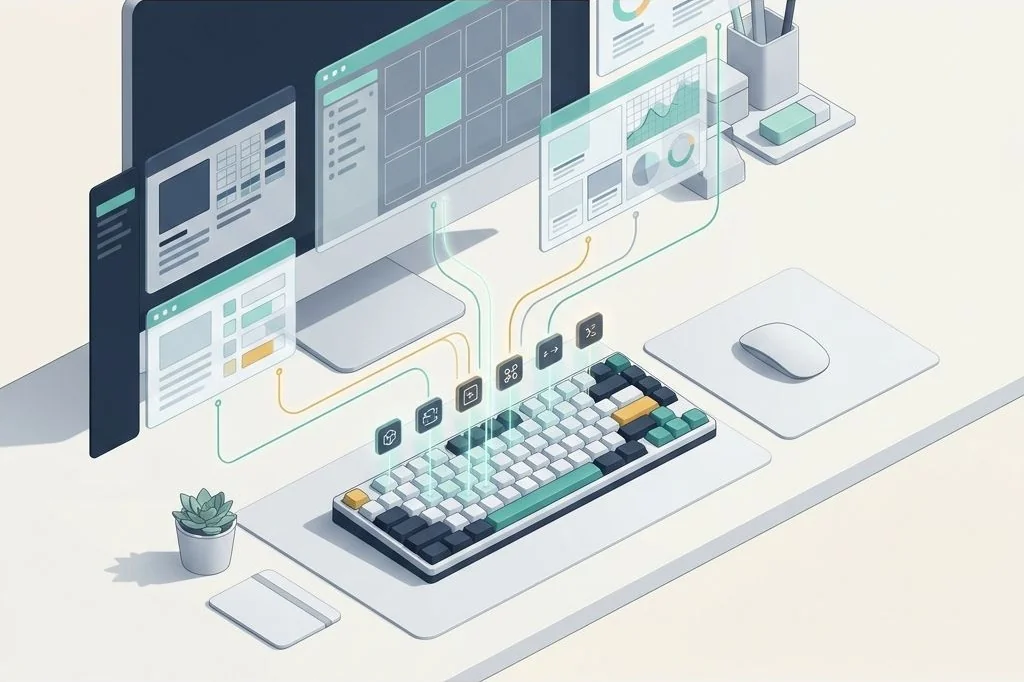
A keyboard-driven window management system maps simple, logical key combinations to spatial actions on your screen. To avoid conflicting with everyday text editing commands like copy or paste, power users use a dedicated conductor key. This is typically the Windows key (often called the Super key) combined with Alt or Shift.
Think of this master key combination as flipping on a light switch. When you hold down your master key, your letter keys temporarily stop typing letters and start issuing spatial commands to your desktop layout:
- Focus Hopping (Moving Your Eyes): Holding the master key and pressing H, J, K, or L instantly shifts your active focus to the window on the left, down, up, or right, mirroring navigation conventions made famous by classic programmers.
- Window Swapping (Rearranging the Tiles): Adding the Shift key swaps the positions of two tiled panes, instantly trading places between your code editor and your research browser.
- Dynamic Resizing: Pressing your master key with the bracket keys expands or shrinks the active column width in clean ten-percent steps.
- State Toggling: Hitting a single letter toggles an application between full-screen focus and its assigned grid tile.
When you contrast this fluid system with automatic desktop tiling vs manual window snapping, you see why professional software developers and writers rarely touch a mouse. Every spatial adjustment happens at the speed of thought.
| Desired Desktop Action | Traditional Mouse Motion | Keyboard-Driven Hotkey | Time Saved |
|---|---|---|---|
| Focus adjacent application | Move cursor across screen, click window body | Super + Direction Key (H/J/K/L) | ~1.8 Seconds |
| Move window to secondary monitor | Drag window title bar across screen boundary | Super + Shift + Left/Right Arrow | ~2.5 Seconds |
| Maximize active window for reading | Aim at tiny square icon in top-right corner | Super + F (Toggle Fullscreen) | ~1.5 Seconds |
| Rebalance split column widths | Carefully hover over 2-pixel divider line and drag | Super + Equal Key (Auto Balance) | ~3.2 Seconds |
| Close inactive background pane | Click window, aim for small red X icon | Super + Shift + Q (Instant Close) | ~1.4 Seconds |
Physical Ergonomics and Muscle Memory
Beyond raw speed, keeping your hands anchored in one physical location provides massive ergonomic relief. When you reach for a mouse, your forearm rotates outward, putting torsional stress on the delicate nerves in your carpal tunnel. Doing this repeatedly creates fatigue along your elbow and upper trapezius muscles.
A keyboard-centric setup keeps your wrists straight, your shoulders dropped, and your posture balanced. Over weeks of consistent practice, hotkeys sink into basal ganglia motor memory. Just like riding a bicycle, you no longer think about pressing keys; your hands automatically reconfigure the desktop the millisecond your mind decides to consult a reference document.
Customizing Your Hotkey Map Without Complexity
You do not need to memorize forty cryptic shortcuts on your first day. In fact, trying to learn too many combinations at once leads to frustration. The most effective approach is establishing a simple foundational grammar of just four or five core hotkeys.
Start with directional focus and simple window closing. Once those combinations feel as natural as pressing the spacebar, add workspace switching shortcuts. Open-source automation engines like AutoHotkey Documentation allow you to remap awkward system shortcuts into clean, accessible keys that suit your personal hand size. Pairing hotkey navigation with techniques for minimizing background memory usage in desktop window managers ensures that your background hotkey daemon responds instantaneously without consuming valuable computer memory.
Frequently Asked Questions
Is keyboard window management difficult to learn for non-programmers?
Not at all. If you already know how to copy and paste using simple keyboard shortcuts, learning three or four spatial navigation keys takes less than an afternoon. Once your fingers memorize the directional keys, navigating your desktop feels as natural as playing a simple video game with directional arrows.
What happens if a shortcut conflicts with an app like Word or Photoshop?
Well-engineered window utilities allow you to designate unusual modifier keys – such as the Windows key combined with Alt – that everyday office applications never use for their internal menus. This ensures your window control commands never interfere with document formatting or creative tools.
Can I still use my mouse whenever I feel like it?
Absolutely. Adopting keyboard navigation does not lock out your mouse. Your mouse remains completely functional for scrolling through long articles, clicking web links, and drawing graphics. The keyboard simply handles the repetitive chore of moving and resizing window boxes.
Transforming your desktop into a keyboard-driven workspace removes the physical clutter of window management from your daily routine. By keeping your hands relaxed on the home row, you establish an uninterrupted typing rhythm that lets your thoughts flow directly onto the screen without pause.