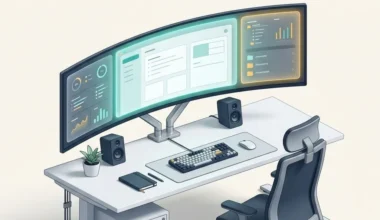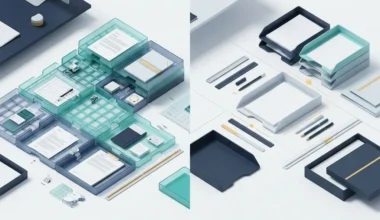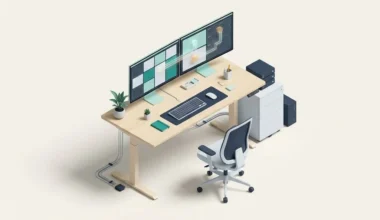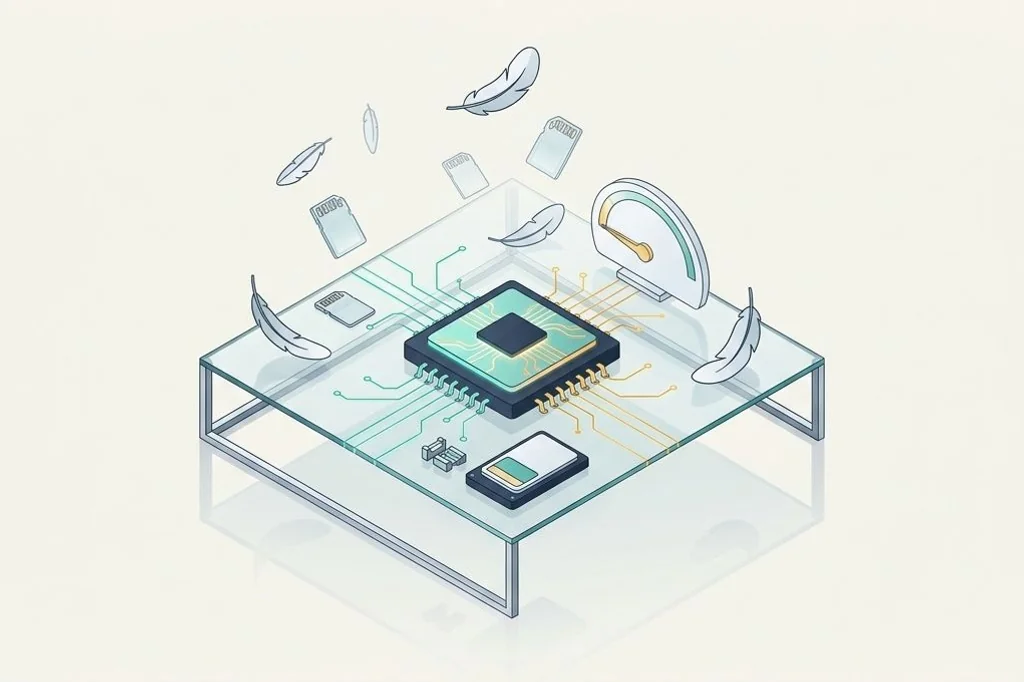
Imagine your study desk at home. The flat wooden top represents your computer memory, often called RAM. Every open book, notebook, and calculator sits directly on this wooden surface so your hands can reach them instantly. Now imagine cluttering that desk with bulky desktop toys: a mini electric fan, a loud digital clock, a decorative water fountain, and three fancy paper holders. None of those toys help you do your homework, yet they hog half the wooden surface. When you finally sit down to write, there is hardly any room left for your notebook. Many modern utility tools behave like those bulky gadgets, consuming hundreds of megabytes of memory just to arrange your windows. Focusing on minimizing background memory usage in desktop window managers ensures your computer keeps its workspace wide open for your actual creative work.
Key Takeaways
Here are the fundamental concepts for running lean desktop utilities:
- Computer memory (RAM) is like your physical tabletop; filling it with utility tools leaves less room for heavy applications.
- Web-based utilities built with heavy browser wrappers consume ten to twenty times more memory than native code tools.
- Turning off fancy window animations and blur effects frees up graphics memory and keeps laptop fans completely quiet.
- Lightweight window managers written in C or Rust typically require less than thirty megabytes of memory to run.
- A lean desktop setup boots up faster and maintains snappy responsiveness even when running complex spreadsheets or photo edits.
The Working Set: Understanding How Apps Occupy Memory
In operating system architecture documented in computer science principles like the working set, every active software program claims a portion of physical RAM. Your computer keeps this data in fast memory chips so the processor can read instructions in nanoseconds. When your physical RAM fills up, your operating system is forced to move idle data into a temporary storage file on your hard drive, a process known as paging or swapping.
Reading from a storage drive – even a lightning-fast modern solid-state drive – is thousands of times slower than reading directly from RAM chips. This is why computers suddenly feel sluggish when you open multiple apps. If your background window manager is bloated, it pushes your important documents into the slow storage file, causing noticeable hesitations when you switch between tasks. Practicing smart minimalist computer configuration guarantees that your operating system keeps your active work right on the fast tabletop.
By monitoring memory allocation through built-in system diagnostics like Microsoft Task Manager, you can immediately spot which background processes pull their weight and which ones steal valuable memory without delivering real value.
Reading Memory Metrics Without Getting Confused
When you open your system resource monitor, you see multiple columns of technical numbers that can look intimidating. Think of these columns as different plates on a dining table:
- Private Working Set: This is your personal dinner plate. It contains food that only you can eat. If your window manager has a private working set of fifteen megabytes, that is the exact amount of private table room it takes up all for itself.
- Shared Working Set: This is the bread basket in the middle of the table. Multiple programs can grab slices of common system libraries from this shared basket at the same time, meaning this memory is shared across your whole operating system.
- Commit Charge: This is the order slip you handed to the waiter. It represents how much total memory your app has promised it might need if things get busy. A lean tool keeps its order slip very short.
Understanding these three distinctions prevents you from worrying over phantom memory numbers. The number that truly matters for desktop speed is the private working set. When a window manager keeps its private plate tiny, your computer has abundant room for giant project files.
Native Code vs Heavy Web Wrappers
One of the biggest culprits behind memory bloat in modern software is the widespread use of packaged web browser runtimes. Many modern utility tools are essentially entire web browsers bundled inside a private window just to draw simple rectangles on your screen. While this makes it easy for developers to write software quickly, it imposes a massive penalty on your hardware.
A web-packaged window manager can easily demand four hundred megabytes of RAM while idling in the background. In stark contrast, a native window manager compiled directly into lightweight binary code requires only ten to twenty-five megabytes. That is a twenty-fold difference in resource efficiency. By avoiding heavy web wrappers, you preserve that memory for demanding tasks like compiling code, rendering audio, or editing high-resolution photos.
| Tool Architecture Type | Typical Idle RAM Usage | Startup Impact | Background CPU Cycles |
|---|---|---|---|
| Native Binary (C / C++ / Rust) | 10 MB to 30 MB | Near instantaneous (< 0.2s) | Zero (event-driven hooks) |
| Compiled Script (AutoHotkey / Lua) | 15 MB to 45 MB | Very fast (< 0.5s) | Minimal (low wakeups) |
| Web Runtime Wrapper (Electron / Webview) | 250 MB to 500 MB | Noticeable delay (2s to 5s) | Periodic background ticks |
Stripping Visual Effects for Silent Operation
Fancy graphical effects – such as translucent frosted glass window headers, drop shadows, and spring-loaded snapping animations – might look neat in demonstration videos, but they require continuous graphical calculations. Every time a window moves, your graphics card must re-render multiple layers of translucent pixels.
On laptops running on battery power, these constant visual calculations draw extra wattage, generating heat and triggering noisy internal cooling fans. Disabling decorative eye candy transforms window management into a crisp, instantaneous utility. When you tap a hotkey, the window snaps into its slot immediately without a three-hundred-millisecond gliding animation.
When combined with the direct control outlined in keyboard driven window management for faster desktop workflows, an unbloated window utility feels as fast as your thoughts. There is zero lag between pressing a key and seeing your screen rearrange itself.
Auditing Your Background Startup Services
A lean window setup should live as a quiet background service that launches invisibly during system startup and consumes zero processing cycles when you are not actively organizing windows. To maintain this clean state, apply three simple auditing rules:
- Disable Telemetry and Analytics: Turn off automated usage reporting in your window tools so the software never wakes up your network card to transmit background packets.
- Prune Unused Plugins: Strip out optional modules like floating clocks, desktop weather widgets, or fancy system monitors that duplicate existing taskbar information.
- Adopt Portable Binaries: Where possible, choose lightweight tools that run from a single folder without deep system registry hooks, a strategy explored in portable window tiling utilities for restricted work laptops.
Frequently Asked Questions
How much RAM should a window manager consume on a modern computer?
A well-engineered window management utility should consume no more than twenty to fifty megabytes of RAM when idle. If a tool requires two hundred megabytes or more, it is likely bundled with an entire web browser runtime that wastes system resources.
Does reducing window manager memory usage save battery life on laptops?
Yes. Lightweight utilities run with zero background CPU wakeups and skip heavy graphical animations. This prevents the processor and graphics card from frequently jumping into high-power states, keeping battery consumption remarkably low.
Can lightweight window tools handle complex multi-monitor layouts?
Yes. Native lightweight tools interact directly with operating system display APIs. They calculate screen coordinates using pure math rather than heavy graphics libraries, allowing them to manage triple-monitor setups faster than bloated alternatives.
Keeping your desktop utility software lean ensures your computer remains responsive, cool, and ready for demanding work. By choosing native tools and stripping unnecessary visual baggage, you preserve your memory surface for the projects that truly matter.