Every writer, developer, and student understands the frustration of losing a vital piece of information during a busy workday. You copy an account number from an email, navigate across three browser windows to paste it into an invoice, and on the way, reflexively copy a product link. In that split second, your account number evaporates into digital thin air, forcing you to retrace your steps and start over. Implementing local clipboard history and snippet expansion for faster typing transforms this fragile process into an impenetrable safety net that preserves your creative momentum.
Key Takeaways
Here are the core principles for managing text efficiently on your Mac:
- The default operating system clipboard operates like a single-slot tray; placing a new slip of paper inside immediately discards the previous one.
- A multi-tier clipboard history acts as a searchable notebook, allowing you to retrieve text copied hours or days earlier.
- Text snippets function like custom rubber stamps, replacing repetitive paragraphs and contact details with brief two-letter triggers.
- Storing clipboard history locally on your encrypted drive safeguards passwords and financial details from cloud exposure.
The Single-Slot Tray: Understanding Default Copy Behavior
To understand why the standard computer clipboard feels so restrictive, imagine you have a tiny wooden tray resting beside your typewriter. This tray is strictly sized to hold exactly one three-by-five note card. When you press Command and C, your computer writes your selected text onto a fresh card and drops it into the tray. It sits there ready for you to press Command and V.
However, the moment you copy a second piece of text – even by accident – the system pushes the old card directly into the paper shredder. If you were copying two items from a webpage, such as a username and a complex password, you are forced to make two complete round trips between the applications. You copy the username, switch windows, paste it, switch back, copy the password, switch windows, and paste again. This back-and-forth travel creates immense mechanical friction.
In technical architecture, macOS manages this through its pasteboard subsystem, as outlined in the official Apple developer pasteboard architecture guide. While Apple system pasteboard is remarkably fast and dependable, its default design maintains only the single most recent item for privacy and memory conservation. Introducing a dedicated manager expands this single tray into a multi-drawer filing system.
The Searchable Ledger: How Clipboard History Works
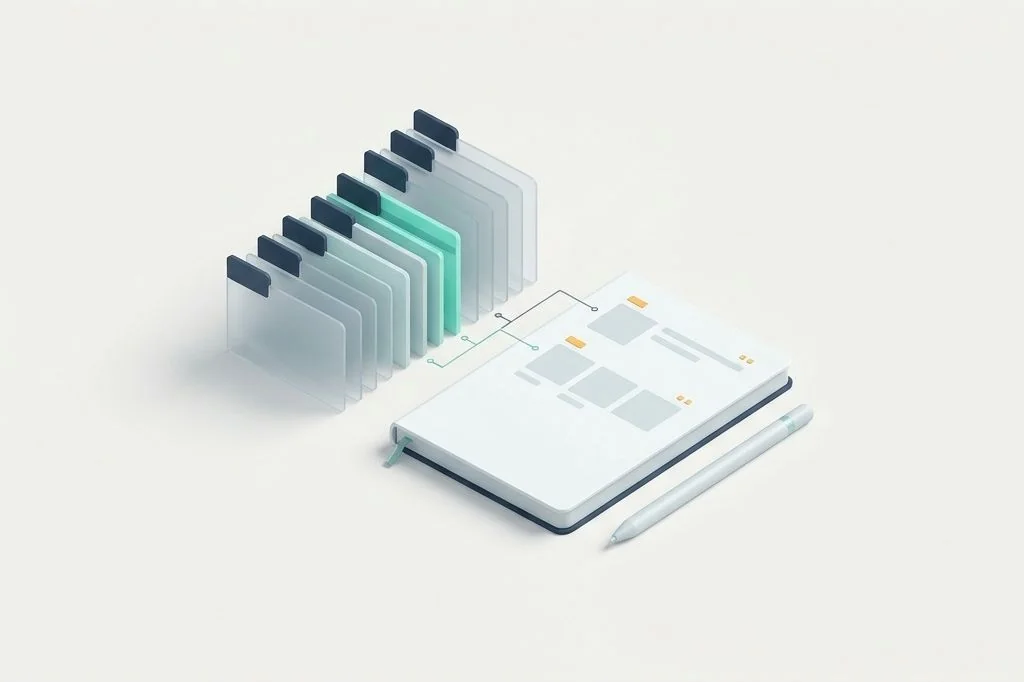
A modern clipboard manager changes the game by acting like an organized ring-bound ledger. Every time you copy a line of text, a block of code, a color hex code, or an image snippet, the manager logs it onto a fresh page in the ledger, timestamping the entry and noting which application created it.
When you need to paste an address you copied at breakfast, you do not hunt through your browser history. You summon your clipboard history bar with a quick shortcut like Command-Option-V, type the first three letters of the street name, hit Return, and the address lands directly at your cursor. This capability pairs harmoniously with broader keyboard driven quick actions for frictionless mac workflows by removing the need to navigate between multiple open windows.
By keeping this catalog organized on your machine, you never experience the anxiety of overwriting valuable copy. You can copy five separate paragraphs from a research paper in a single pass, jump into your text editor, and paste them sequentially without ever touching your mouse.
Rubber Stamps: Supercharging Output with Text Expansion
While clipboard history helps you recover text you recently touched, text snippet expansion helps you produce text you use every single week. Think of snippet expansion as a collection of personalized rubber ink stamps lined up in a neat wooden rack on your desk.
Instead of manually typing out your complete business mailing address, phone number, Zoom meeting invite link, or standard client greeting, you assign a brief trigger keyword to that stamp. When you type the characters “;addr”, the expansion engine instantly intercepts the keystrokes, erases the four characters, and stamps down your four-line address in a millisecond. If you are designing an intentional setup, reviewing designing a minimalist keyboard first macos workspace demonstrates how text shortcuts eliminate visual clutter from your daily screen time.
Architectural Comparison: Manual Typing vs Automated Snippets
Evaluating how text expansion impacts daily productivity illustrates the massive cumulative benefits of automated keystrokes.
| Writing Scenario | Manual Typing Routine | Local Snippet Expansion | Keystrokes Saved |
|---|---|---|---|
| Email Sign-off | Type 45 characters with title and phone | Type ;sig (4 characters) | 41 keystrokes |
| Meeting Invitation | Open calendar, copy link, format text | Type ;zoom (5 characters) | ~120 keystrokes + 15 seconds |
| Code Boilerplate | Recall syntax, format indentations | Type ;func (5 characters) | ~80 keystrokes |
| Customer Support Reply | Open document, copy template, customize | Type ;intro (6 characters) | ~250 keystrokes + 30 seconds |
Over the course of a calendar year, an active professional typing fifteen standard emails and documents per day saves over one hundred thousand physical keystrokes through snippet expansion alone. That translates directly into reduced wrist strain and prolonged mechanical keyboard life, all while reinforcing sustainable desktop habits.
The Local-First Security Mandate
Because your clipboard frequently captures sensitive information – such as one-time passwords, credit card numbers, personal addresses, and private messages – security must remain your top priority. Some cloud-synced clipboard utilities transmit your copied data across the internet so it appears on your mobile phone or tablet.
While cross-device syncing sounds convenient, it exposes your most personal notes to external servers and third-party databases. A secure setup demands a local-first philosophy. Your clipboard history database should reside exclusively on your encrypted local drive. High-quality clipboard tools allow you to blacklist password managers like 1Password or Apple Keychain, ensuring that when you copy a master password, the utility ignores the event completely and leaves zero trace in your history ledger.
Configuring automatic retention thresholds
Do not allow your clipboard history to expand indefinitely into an unmanageable five-year archive. Set a reasonable retention window, such as fourteen or thirty days. An automatic pruning rule keeps your history database lightweight and lightning-fast, ensuring that search queries return results in single-digit milliseconds.
Establishing clean snippet trigger prefixes
Choose an uncommon punctuation prefix for your text snippets, such as a semicolon (;) or double comma (,,). If you create a snippet triggered by the plain word “email”, every time you type the word “email” in a normal sentence, your expansion tool will prematurely fire. Using “;email” ensures the trigger only activates when you intentionally summon your digital rubber stamp.
Frequently Asked Questions
Does running a clipboard history manager slow down copy and paste operations?
No. Modern clipboard managers hook into the operating system notification bus asynchronously. The native copy action executes at full speed, while the manager indexes the text in the background without introducing any typing delay.
Can I copy images and formatting alongside plain text?
Yes. Capable clipboard tools can store rich text, formatted tables, and image files. However, to conserve disk space and keep search snappy, many power users configure their managers to strip formatting and paste plain text by default.
How do I prevent my clipboard tool from recording sensitive passwords?
Navigate to your clipboard tool settings and open the Application Exclusions menu. Add your password manager and browser private browsing windows to the ignored list. Standard password utilities mark their pasteboard data with concealed flags that respectful clipboard managers automatically ignore.
Managing your copied text with a local-first history engine gives you complete confidence as you write and organize information. By pairing reliable clipboard recall with rapid snippet expansion, your thoughts flow directly onto the screen without friction or fear of lost ideas.