In modern software design, there is a temptation to create giant all-in-one applications that attempt to do everything: browse files, edit text, convert images, and send emails. When these monolithic programs freeze, your entire workflow halts. The classic Unix philosophy takes the opposite approach: build small tools that do exactly one thing well, and connect them together like Lego bricks. Mastering command chaining and piping allows you to construct custom data pipelines that solve unique problems in seconds.
Key Takeaways
Fundamental principles for assembling Unix command pipelines on macOS:
- The pipe operator acts like a direct plumbing conduit, feeding the output of one tool into the mouth of the next.
- Data streams in active memory without creating temporary junk files on your storage drive.
- Sequential execution operators ensure dependent tasks only proceed when previous steps succeed.
- Composing small, focused utilities delivers far greater flexibility than monolithic software suites.
- Pipeline architecture minimizes manual data copying, eliminating human transcription errors.
The Assembly Line Metaphor: How Pipes Move Information
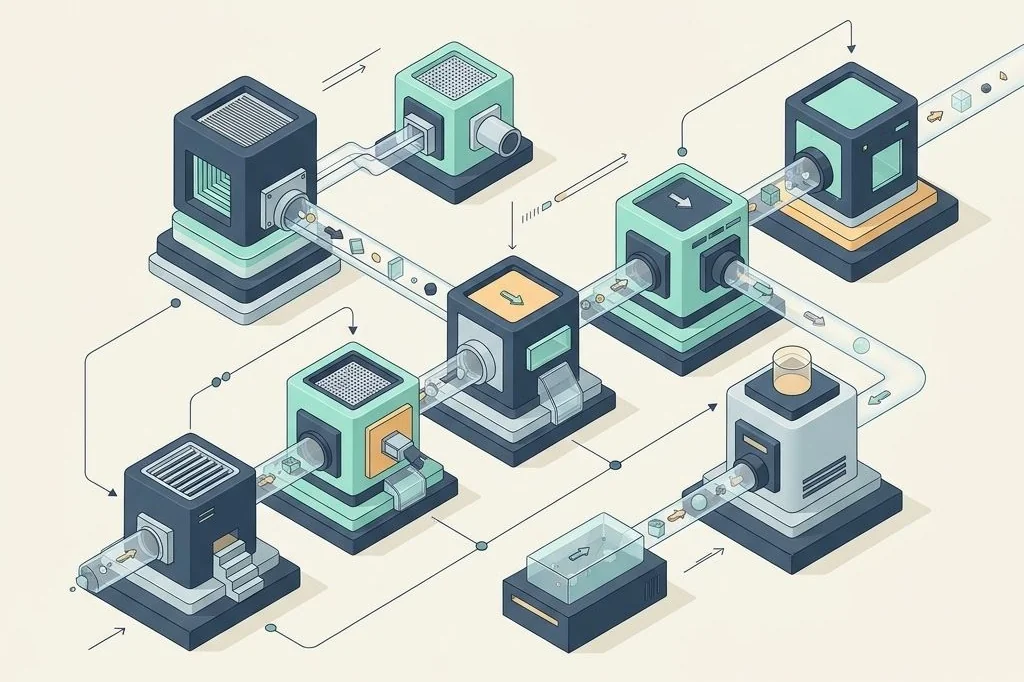
Imagine visiting a modern bottling factory. You do not see a single giant robot that washes the glass bottle, pours the juice, puts on the metal cap, glues the paper label, and packs the box into a wooden crate all with one mechanical arm. A machine that complicated would break down constantly, and repairing it would shut down the entire factory.
Instead, a factory uses an assembly line conveyor belt connecting five simple, specialized stations. Station one only washes bottles. Station two only pours juice. Station three only presses caps. Station four only glues labels. Station five only packs boxes. Because each station has one simple job, the assembly line operates at incredible speed without jamming.
In Unix systems, the pipe symbol (the vertical bar | on your keyboard) is that conveyor belt. It takes the output spilling out of one tool and funnels it directly into the input of the next tool without touching your disk drive. As defined in The Open Group shell pipeline standards, piped utilities run concurrently, processing data streams smoothly. For strategies on arranging your screen so you can observe these streams comfortably, review my guide on maximizing screen space on compact MacBooks.
Connecting Single-Purpose Tools into Custom Solutions
Let us see how this assembly line works in real life. Suppose you want to find out which five applications are using the most memory right now, but you only want their names and clean numbers, without confusing header text or system columns.
Rather than writing a complex custom script, you string three simple tools together along your conveyor belt:
- The first tool lists every running program and its memory consumption.
- A pipe passes that raw list to a sorting tool, which arranges the lines from highest memory draw to lowest.
- A second pipe passes the sorted stream to a trimmer tool, which prints only the top five lines and discards the rest.
The entire operation takes a tenth of a second. You never had to write a temporary file to your hard drive, open an editor, or copy-paste numbers across windows. Explore more practical techniques for decluttering your computing habits on our primary site at Easy Efficiency.
Conditional Chaining: Doing Work Only When Safe
Beyond passing data through pipes, command chaining lets you tell your Mac: do this first task, and if and only if it finishes perfectly without any errors, immediately proceed to the second task.
Think of this like a careful parent baking with a child. You say: first, mix the batter in the ceramic bowl. If the batter is completely smooth and ready, then slide the tray into the preheated oven. You would never tell a child to slide an empty tray into the oven before the batter is mixed.
In the terminal, the double ampersand operator (&&) provides this exact safety check. For example, when updating my tools, I instruct the system: download the latest repository recipes, and if that download succeeds, then upgrade my installed utilities. If my internet connection drops midway through the download, the second command never runs, preventing half-baked installations. For tips on keeping your digital space tidy while running background tasks, check my walkthrough on ambient focus and desktop hygiene.
Stream Redirection: Storing the Final Product
Once your assembly line finishes processing, you can choose where the final product lands. By default, the terminal displays the output right on your screen so your eyes can inspect the result.
However, if you are generating an archive report or preparing data for a coworker, you can attach a direct funnel to a new file using the redirection operator (the greater-than sign). The entire output stream flows straight into a new clean text file on your drive, ready to be emailed, archived, or shared.
Combining pipes, conditional operators, and output redirection transforms how you interact with your Mac. You stop feeling like an operator mechanically clicking buttons and start feeling like an architect designing elegant, self-running systems.
Using tee as an inspection valve in long pipelines adds another layer of confidence. Imagine building a water filtration line where you want to bottle the purified water at the end, but you also want a small clear glass tap in the middle to taste the water as it passes through. The tee command splits a data stream, displaying the intermediate results on your terminal screen while simultaneously forwarding the stream to the next filter uninterrupted.
Process substitution expands pipeline capabilities even further. Standard commands often expect input from physical files on your disk. With process substitution, you can run two complex pipelines side by side and feed their live memory outputs directly into a comparison utility as if they were saved files. This eliminates temporary scratch files entirely, keeping your storage drive spotless and your operations instantaneous.
Once you internalize pipeline thinking, you begin seeing daily digital tasks through the lens of continuous data streams. Instead of relying on rigid, single-purpose software applications, you build bespoke assembly lines that handle unique computational challenges with elegance, precision, and speed.
Frequently Asked Questions
Can I chain more than two commands together in a single pipeline?
Yes. You can connect as many tools as you need in a single pipeline. It is common to see pipelines with four, five, or six sequential filters working harmoniously together.
Does piping data through multiple tools slow down my Mac?
No. Unix pipes process data directly in RAM buffers as streams. The tools operate concurrently, making pipelines significantly faster than saving intermediate files to your physical disk drive.
What happens if a tool in the middle of a pipeline encounters an error?
By default, error messages are sent to a separate channel called standard error, appearing on your screen even if regular data is redirected to a file. You can configure your shell to halt pipelines immediately upon encountering an error.
Is there a limit to how much data a pipe can handle?
There is no practical limit to the total data size. Because data flows in chunks through temporary memory buffers, you can stream gigabytes of text through a pipeline without overwhelming your computer RAM.
Mastering command chaining and piping equips you with the fundamental superpower of Unix computing: assembling simple, dependable tools into elegant, automated solutions.