Think about the rooms inside your home. You have a quiet bedroom for sleeping, a clean kitchen for cooking food, and a study room for doing homework. You would never drag a sizzling frying pan and dirty cooking pots into your bedroom and set them on your study desk while trying to write an essay. If all your cooking tools, board games, and schoolbooks were piled on a single table in the living room, you would spend your whole day feeling overwhelmed by mess. A computer screen can easily become that messy room when email, web browsers, spreadsheets, and chat apps crowd the same screen. Combining virtual desktops and tiling layouts for clean task switching creates separate, tidy rooms inside your computer, letting you move between projects without carrying the clutter with you.
Key Takeaways
Here are the core methods for dividing your work projects into dedicated virtual workspaces:
- Virtual desktops function like separate rooms in a house, keeping unrelated applications completely out of sight.
- Combining virtual screens with automatic tiling ensures every room maintains a clean, geometric layout.
- Context switching fatigue drops dramatically when you close off distracting communication apps while focusing on deep writing.
- Simple hotkeys let you slide between digital rooms in a fraction of a second, much faster than minimizing windows.
- Assigning dedicated roles to each workspace builds strong mental associations that help you enter focused flow quickly.
The Cognitive Price of Context Switching
In cognitive science and computer systems engineering documented in principles like the context switch, shifting attention from one complex activity to another leaves a cognitive residue. When you are writing a detailed technical report and a bright red chat badge flashes in the corner of your screen, your brain cannot simply ignore it. Your mind pauses, processes the notification, and burns mental fuel deciding whether to open it.
Even if you click back to your document immediately, research shows it takes several minutes to regain your original depth of concentration. Stacking ten different applications onto a single desktop virtually guarantees constant interruption. Every time you minimize one app to find another, you catch glimpses of unread messages, news tabs, and pending tasks that pull your attention away from your primary goal. Practicing smart digital workspace compartmentalization establishes firm visual boundaries between different types of computer tasks.
Operating system features like Microsoft Windows Multiple Desktops provide an easy, built-in mechanism to create multiple independent workspaces without requiring multiple physical computer monitors.
Designing a Four-Room Digital Workspace
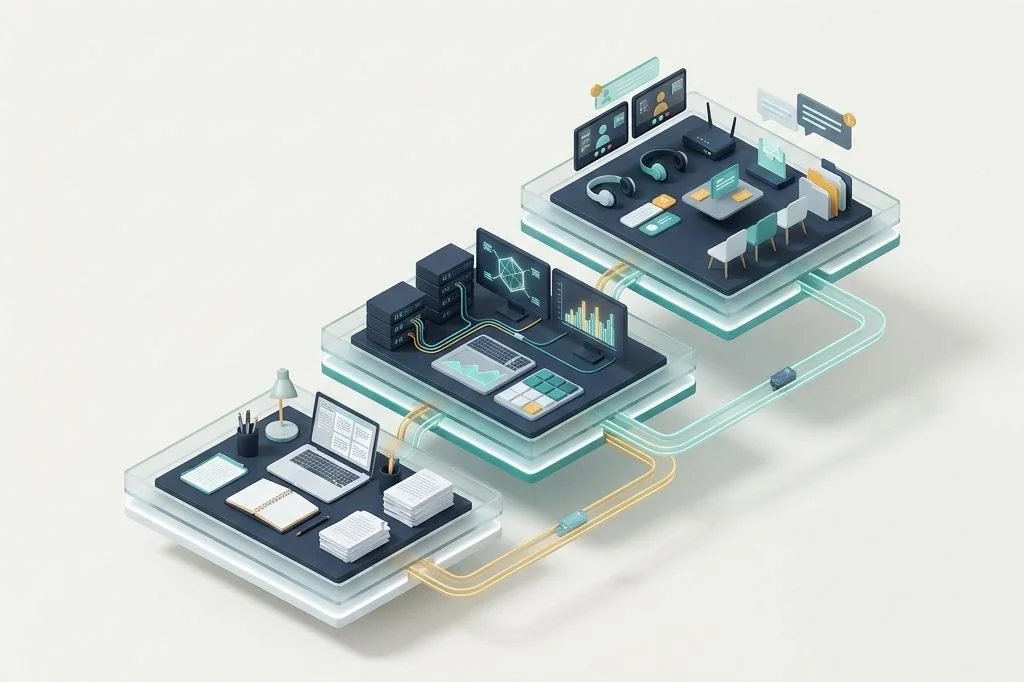
Instead of creating a dozen random virtual screens, the most resilient setup relies on a predictable four-room architecture. Each room has a clear, unbending purpose:
- Room 1: The Focus Chamber (Creation): Dedicated exclusively to primary creative output. This is where your code editor, writing software, or main document lives. Zero communication apps or news browsers are allowed here.
- Room 2: The Library (Research & Reference): Holds your extensive web browser tabs, technical documentation PDFs, and spreadsheet data tables. When you need facts, you step into this room, take notes, and step back.
- Room 3: The Town Square (Communication): Houses team chat apps, email clients, and project task boards. You visit this room only at planned intervals throughout your day to answer messages in batches.
- Room 4: The Utility Shed (Admin & Background): Holds system diagnostics, file transfer progress boxes, music controllers, and temporary tools.
When you contrast this structured arrangement with the differences between automatic desktop tiling vs manual window snapping, you realize that automatic tiling maintains geometric order inside each room, so you never enter a cluttered space.
| Virtual Room Number | Functional Name | Internal Tiling Layout | Allowed Software Types |
|---|---|---|---|
| Desktop 1 | Focus Chamber | Single full-screen pane or 80/20 split | Code editors, writing tools, document processors |
| Desktop 2 | The Library | Dual equal 50/50 columns | Research web browser, PDF readers, spreadsheets |
| Desktop 3 | The Town Square | Triple vertical 33% columns | Team communication tools, email, calendar |
| Desktop 4 | Utility Shed | Floating casual mosaic | Music player, file manager, calculator, terminals |
Audio and Notification Isolation Across Desktops
Visual isolation is only half the battle. If you are sitting quietly in your study room doing homework, but you can hear the television blaring from the living room next door, you still struggle to concentrate. The same challenge applies to audio notifications and system alerts across your virtual desktops.
When you configure your virtual workspaces, pair them with operating system focus modes that silence chime notifications on your creative screen. Keeping your Focus Chamber completely muted ensures that an incoming message in the Town Square does not interrupt your creative momentum with a loud bell sound. You treat notifications like physical postal letters waiting in an outdoor mailbox: you check them when you choose to walk out to the box, not every time a truck drives down the road.
Gliding Between Workspaces with Smooth Hotkeys
The magic of virtual desktops comes from how effortlessly you can travel between them. Clicking an icon on your taskbar feels clunky and slow. A well-configured setup lets you switch rooms using instantaneous keyboard combinations.
By holding down the Windows key and Ctrl while tapping the Left or Right Arrow keys, your screen glides smoothly to the adjacent room. Advanced tiling managers take this even further, letting you jump directly to Desktop 1, 2, 3, or 4 by pressing your master key combined with the corresponding number. Moving a window from your Focus room into your Library room takes a single key stroke, completely bypassing the need to drag anything across borders. Knowing how to handle floating dialogs and utility alerts through managing floating dialogs and modal popups in tiling environments ensures that sudden notification popups never disrupt your clean room boundaries.
Mental Anchoring and Daily Habit Formation
Our brains thrive on environmental cues. When you enter a quiet university library, you naturally speak in a whisper and focus on reading because the physical space cues that behavior. By keeping your Focus Chamber strictly free of chat apps and email badges, your brain develops a Pavlovian focus response: when you slide into Desktop 1, your subconscious mind understands that it is time to do serious work.
At the end of your workday, closing your communication and reference desktops leaves your Focus Chamber clean and ready for tomorrow morning, giving you the same satisfying feeling as wiping down a wooden desk before packing up your backpack.
Frequently Asked Questions
Do virtual desktops use more computer memory than a single desktop?
No. Virtual desktops do not duplicate your operating system or consume extra memory on their own. They are simply logical groups of coordinates. The only memory consumed comes from the actual applications you choose to keep open inside those spaces.
What happens to my open windows if my computer restarts?
Modern operating systems remember which virtual desktop each window belonged to. When your apps restore after a system update, capable tiling utilities automatically route each application window back into its assigned virtual room and snap it into its grid tile.
How many virtual desktops should I create to stay organized?
Between three and five virtual desktops is the sweet spot for most professionals. Creating more than six desktops introduces navigational friction, making it difficult to remember where specific windows are parked.
Pairing virtual desktops with automatic tiling turns a chaotic digital workspace into a peaceful suite of purposeful rooms. By separating your creative focus from incoming chatter, you preserve your mental energy and create a calm computing environment that supports your deepest thinking every single day.