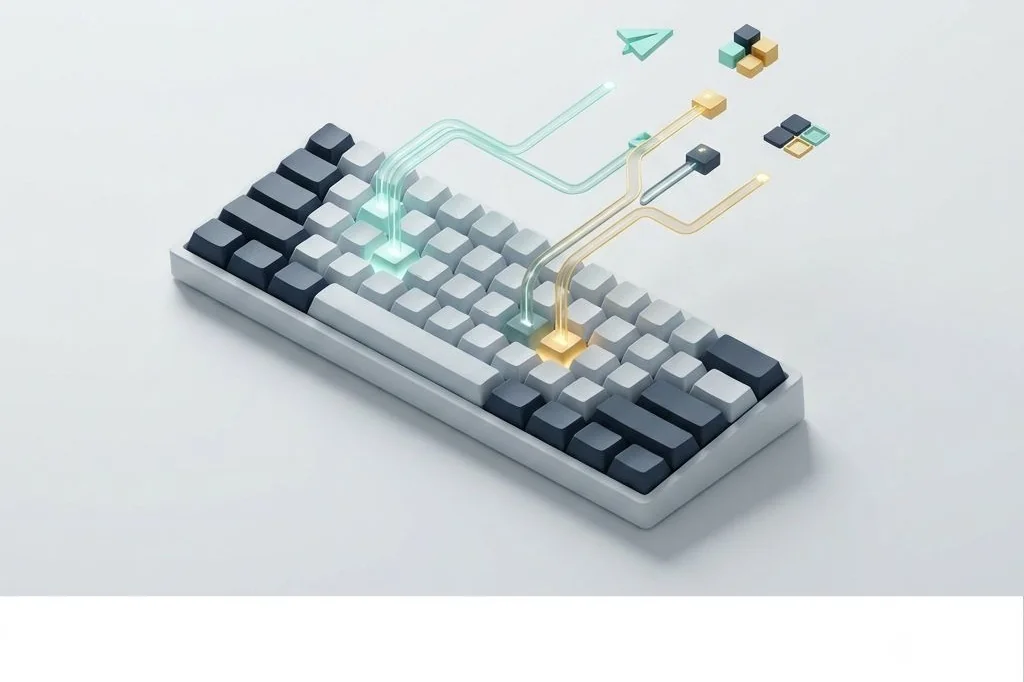
Every time you reach for your mouse or trackpad, your brain pauses its creative momentum to guide a tiny digital pointer across a field of pixels. While the mouse is an extraordinary invention for painting or editing photographs, using it for mundane navigation is like walking up five flights of stairs when an elevator stands directly in front of you. Building keyboard driven quick actions for frictionless mac workflows allows you to command your computer without lifting your fingers from the keyboard, keeping your concentration unbroken and your physical motion effortless.
Key Takeaways
Here are the vital insights for constructing a mouse-free workstation on macOS:
- Every reach for your mouse incurs a physical and mental transition tax that drains focus over a full workday.
- A command bar functions like a central telephone switchboard, connecting your thoughts to running applications in two keystrokes.
- Muscle memory thrives on predictable prefix keys and letter-association patterns rather than convoluted key combinations.
- Combining system shortcuts with custom launcher actions creates a seamless bridge between local files, text utilities, and web services.
The Hidden Cost of the Mouse Trap
Consider the physical choreography of a typical computer task. You are typing an email and need to check a number in a spreadsheet. Your right hand lifts from the keyboard, glides six inches across your desk mat, grips the mouse, and pushes it forward. Your eyes leave the sentence you were constructing to track the white arrow pointer on the screen. You click the spreadsheet icon in the dock, wait for the window to appear, scroll down, select the cell, copy the value, and then drag the pointer back to your email window.
That entire sequence takes roughly four to six seconds. While six seconds feels insignificant in isolation, repeating this ritual dozens of times each hour fragments your mental state. In cognitive science, this friction is known as an attention shift. Your working memory is like a small chalkboard that can only hold a few numbers or sentences at once. Every time you redirect your gaze to chase a mouse cursor, you wipe half the chalkboard clean.
By comparison, pressing Command and Tab or summoning your central launcher with Option and Space allows you to jump directly to the target application in less than a half-second. Your hands remain positioned on the home keys, and the chalkboard in your mind stays completely intact. Practicing clean digital efficiency guidelines begins with recognizing these invisible frictions and systematically removing them from your daily routine.
Mapping the Central Switchboard Architecture
To establish an effective keyboard-first workflow, think of your launcher as an old-fashioned telephone switchboard operator. In the early days of telecommunications, callers did not walk over to other houses to deliver messages. They picked up the receiver, spoke the name of the destination to the central operator, and the operator plugged the cord into the correct socket instantly.
Your command bar plays the exact same role. Instead of remembering where thirty different software icons hide across your desktop, dock, and menu bar, you summon the operator with a single trigger key. You type two letters – such as “sp” for spreadsheet or “no” for notes – hit Return, and the window appears ready for your input. For those weighing whether to rely on native tools or modular hubs, my comparative study on spotlight replacements vs native mac command palettes outlines the architectural distinctions in detail.
Official system shortcuts, thoroughly cataloged in the official Apple macOS keyboard shortcuts directory, provide a rock-solid foundation for this switchboard mentality. When you combine Apple default window hopping with custom quick actions, your keyboard becomes a comprehensive remote control for every digital tool on your machine.
Core Categories of Rapid Keyboard Actions
A well-structured keyboard workflow divides daily tasks into four distinct functional tiers. Categorizing your actions prevents your shortcuts from colliding with one another and makes muscle memory effortless to maintain.
| Action Category | Physical Metaphor | Typical Keyboard Route | Efficiency Gain |
|---|---|---|---|
| Application Jumping | Walking through an instant doorway | Modifier + Space $ ightarrow$ App name initials | Eliminates dock visual scanning |
| Text Manipulation | Using an automated rubber stamp | Prefix key $ ightarrow$ Snippet abbreviation | Replaces repetitive typing |
| Window Snapping | Snapping building blocks into place | Dedicated modifier + Arrow keys | Removes manual window dragging |
| Script Execution | Flipping a master wall switch | Custom hotkey $ ightarrow$ Shell trigger | Automates multi-step file chores |
Notice how each category addresses a specific friction point. When you treat window snapping as a keyboard reflex, you never grab the edge of an app frame to stretch it across your screen. When you treat text snippets as automatic rubber stamps, you never manually type your email address, physical address, or common greeting templates again.
Designing Intuitive Mnemonics for Muscle Memory
The most common reason people abandon keyboard shortcuts is cognitive overload. If you attempt to memorize thirty random combinations like Control-Option-Shift-F8, your brain rebels, and your hand immediately reaches back for the mouse. Ergonomic keyboard design requires logical prefixes and memorable abbreviations.
The single-modifier prefix rule
Assign a dedicated modifier key to specific groups of tasks. For example, let the Option key handle window layout commands, while the Control key handles text snippet expansions. When your brain knows that Option always means screen geometry, you never have to guess which fingers to press. If you want to dive deeper into custom automations, exploring custom script triggers and hotkey routing for power users provides a framework for creating single-stroke actions without shortcut conflicts.
Vowel-free abbreviations and fuzzy matching
Modern command palettes rely on intelligent fuzzy matching algorithms. This means you rarely need to type the full name of an action. Typing “term” opens Terminal, typing “calc” summons the calculator, and typing “pref” jumps straight to system settings. Trusting this fuzzy logic allows you to enter commands in rapid bursts without looking down at your fingers.
The Two-Second Rule: Calculating Annual Micro-Delays
To appreciate why keyboard navigation matters so much, let us do simple arithmetic. The average knowledge worker performs approximately eighty window transitions, file lookups, and app switches every working day. If each switch requires reaching for the mouse, moving the pointer across glass, and returning your hand to the home row, you spend at least two full seconds per action.
Eighty actions multiplied by two seconds equals one hundred and sixty seconds each day. Multiply that across two hundred and fifty working days in a year, and you spend forty thousand seconds – or more than eleven full hours – doing nothing except lifting your arm back and forth across a mouse pad. That is more than an entire working day lost each year to mechanical transit alone.
Think of it like driving through a city where every single traffic signal turns red the moment you approach it. Even if the wait at each light is brief, the constant braking and accelerating wears down your vehicle and exhausts the driver. Adopting keyboard actions creates a green wave across your computer screen. You glide from one thought to the next at a steady, uninterrupted speed.
Frequently Asked Questions
How long does it take to build reliable keyboard muscle memory?
Most individuals build solid muscle memory within seven to ten days of consistent practice. The secret is to introduce only two or three new shortcuts at a time. Once those actions become second nature, add another small cluster until your entire workflow operates through keystrokes.
What should I do when a third-party app overrides my global shortcuts?
macOS allows you to remap or disable application-specific shortcuts through the Keyboard settings menu. If an app hijacks a vital command, reassign that specific software command to a less critical key combination so your global launcher triggers remain unhindered.
Can keyboard workflows cause hand or finger strain?
Strain usually occurs when shortcuts require unnatural finger contortions, commonly referred to as claw grips. To avoid fatigue, avoid combinations that require stretching four fingers simultaneously. Use your thumb for Command, and rely on sequential palette typing rather than complex chords.
Transitioning to keyboard-driven navigation is like clearing fallen branches off a garden path. With each unnecessary mouse click eliminated, the route between your intentions and your digital output becomes smoother, faster, and remarkably satisfying.