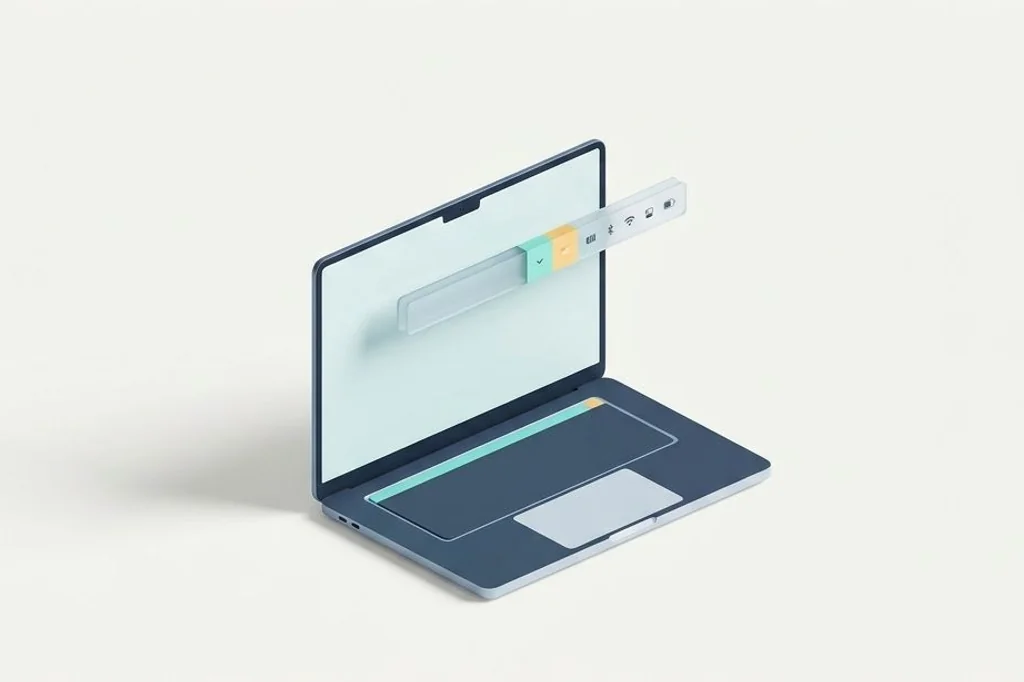
Modern laptops feature gorgeous, vibrant displays with ultra-thin bezels. But to fit high-definition cameras into those slender borders, hardware designers introduced a physical cutout – often called the notch – right in the middle of the top edge. For casual users, this cutout is barely noticeable. But for professionals who run multiple utilities, audio tools, and system helpers, that physical barrier presents an immediate crisis: icons on the right side of the screen simply disappear behind the black cutout when application menus expand. Adopting collapsible menu bar managers for notch screen macbooks provides a practical solution that restores access to your hidden tools while keeping your visual horizon peaceful and clean.
Key Takeaways
Here are the fundamental concepts for managing your top screen space effectively:
- The camera notch acts like a structural pillar placed right in the center of a narrow wall shelf, physically blocking anything placed behind it.
- macOS automatically conceals overflowing menu bar icons behind the notch without warning you that tools have become inaccessible.
- A collapsible menu manager operates like an accordion drawer, tucking secondary utilities out of sight until you explicitly summon them.
- Reducing visible status icons dramatically lowers visual fatigue while preserving vital computer memory for active projects.
The Pillar in the Narrow Hallway Metaphor
To understand why icons disappear, imagine a long, narrow wooden shelf mounted high up on a wall in your hallway. On the left side of the shelf, you place index cards listing the rooms of your house: File, Edit, View, and Window. On the right side of the shelf, you line up small household items: a clock, a temperature gauge, a flashlight, and a keyring.
Now imagine someone builds a thick wooden architectural pillar right down the middle of the hallway, right through the center of your shelf. If you have only two or three items on the right side, there is plenty of room between the pillar and the wall. But if you line up fifteen items, the row extends past the open space. The items in the middle end up directly behind the solid pillar. You cannot see them, and you cannot reach them without moving the pillar itself.
On your laptop, the camera notch is that physical pillar. When you open a complex software application with extensive menus, the left-hand words stretch toward the center. At the same time, your background utility icons march in from the right. When the two lines collide, macOS does not shrink the icons or wrap them onto a second line. Instead, it silently swallows the icons that collide with the black cutout. Embracing practical digital efficiency principles means eliminating these invisible traps before they interrupt your focus.
The Accordion Drawer: How Menu Bar Managers Work
A collapsible menu bar manager acts like a folding accordion drawer mounted underneath your narrow shelf. Instead of leaving twenty items exposed along the ledge, you designate three or four items to remain permanently visible: your battery level, your network status, and the current time.
All other tools – such as cloud sync icons, clipboard recorders, screenshot triggers, and audio switches – are placed inside the drawer. On your screen, this drawer appears as a tiny, elegant divider dot or arrow. When you need to adjust an audio input or check a sync status, you simply hover your cursor over the divider or tap a keyboard shortcut. The drawer expands smoothly to the left, revealing your full collection of tools. When you finish, the drawer folds back up, leaving your screen completely calm.
Apple provides native controls to adjust what appears on your top strip, detailed in the official Apple macOS menu bar configuration guide. However, third-party collapsible managers provide the dynamic folding mechanisms necessary to handle hardware camera cutouts cleanly.
Architectural Comparison: Native macOS vs Collapsible Managers
Comparing the default system behavior with a dedicated manager highlights why an organizing tool is essential on modern hardware.
| Display Dimension | Default macOS Handling | Collapsible Menu Manager |
|---|---|---|
| Notch Collision Behavior | Silently conceals overflowing icons behind notch | Folds excess icons into an expandable secondary row |
| Visual Sightline | Crowded strip of 15 to 30 unorganized icons | Pristine strip featuring 3 to 4 core status indicators |
| Icon Reordering | Requires holding Command while dragging | Visual settings panel with drag-and-drop sections |
| Hotkeys and Gestures | Clicking icons directly with mouse | Global keyboard shortcuts to reveal or hide the tray |
| Memory Footprint | Zero extra memory (built into OS) | Minimal (typically 20 MB to 45 MB of RAM) |
Notice how a manager completely eliminates the danger of lost icons. By creating a distinct hidden section, your tools always have a predictable home. When evaluating tool options, our comprehensive study comparing open source menu bar hiders vs commercial status utilities helps you select an engine that matches your exact performance standards.
Establishing a Three-Tier Visual Hierarchy
To configure your collapsible bar with maximum clarity, organize your utilities into three distinct operational tiers. This prevents your hidden drawer from becoming just as cluttered as the original bar.
Tier 1: Always visible (essential metrics)
Keep only items that give immediate, non-actionable status updates. Your battery percentage tells you when to find a wall outlet, and your clock keeps you on schedule. Adopting the three icon rule for a distraction free macos top bar ensures that your primary field of view remains clean and serene throughout the day.
Tier 2: Hidden drawer (occasional utilities)
Place tools you interact with two or three times a day inside the collapsible drawer. This includes your VPN switch, cloud storage status, calendar drop-down, and window snapping helper. These tools are readily accessible with a quick gesture, but they do not demand your attention while you are typing an essay or editing video.
Tier 3: Permanently hidden (background daemons)
Many utilities offer an option to hide their menu bar icon completely while continuing to run their background functions. For example, keyboard shortcut engines and clipboard recorders rarely need a visible icon because you interact with them exclusively through key combinations. Hiding their icons permanently frees up horizontal shelf space and removes unnecessary visual clutter.
Frequently Asked Questions
Does running a menu bar manager drain extra laptop battery?
High-quality, native menu bar utilities consume negligible power. Because they only update screen pixels when you expand or collapse the drawer, their idle CPU usage sits near zero percent. Battery drain only occurs if you run bloated tools that constantly poll online servers.
Can a menu bar manager create a second row below the notch?
Yes. Several modern managers feature a floating bar or second-row dropdown mode. When triggered, the extra tools appear neatly beneath the main top bar, ensuring that even systems with dozens of icons never collide with the physical screen notch.
Will third-party menu managers break after major macOS updates?
Because these utilities interact with private system window server APIs, major operating system updates can occasionally alter how menu items are rendered. Choosing actively maintained open-source or established commercial software ensures rapid compatibility patches whenever system software updates.
Regaining control over your top screen space transforms your laptop from a cramped display into an expansive digital canvas. By installing a lightweight collapsible manager and organizing your icons into clear tiers, you ensure that no tool is ever lost behind the notch while keeping your visual horizon peaceful and focused.