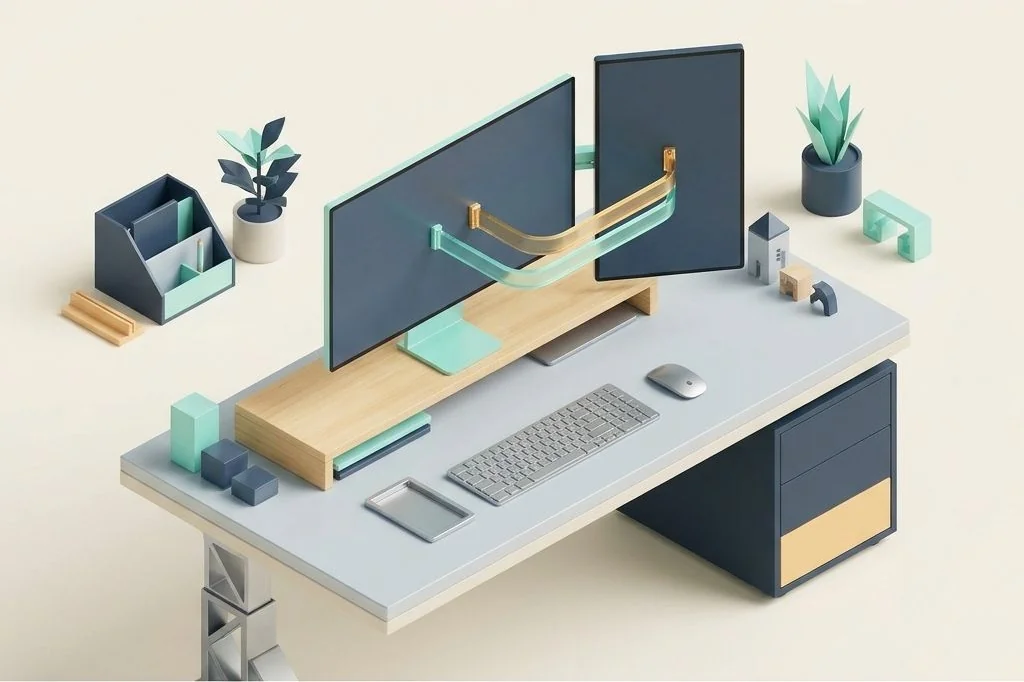
Adding a second monitor to your desk seems like an obvious upgrade. You double your screen area, which means you should double your speed, right? In practice, placing two identical wide screens side by side often creates an ergonomic headache known as the tennis match syndrome. Your head constantly pivots left and right, leaving your neck sore and your focus shattered. When architecting a dual monitor layout macos workflow, the real secret lies in asymmetry: designating one screen as your primary drafting bench and the second as a vertical reference board.
Key Takeaways
Here are the fundamental rules for building an asymmetric dual display system on macOS:
- Treat your primary horizontal screen like your main writing pad and position it dead center in front of your eyes.
- Rotate the secondary screen ninety degrees into vertical orientation to serve as an ambient reading column.
- Vertical screens display long documents, code files, and chat feeds naturally without wasting horizontal margin space.
- Aligning screen virtual coordinates precisely in macOS prevents your mouse cursor from catching on invisible display corners.
- Routing audio and utility icons strictly to the primary screen keeps the secondary panel free of visual distraction.
- Using dedicated monitor arms allows fine-grained micro adjustments so display bezels meet seamlessly without gaps.
The Drafting Table and Bulletin Board Metaphor
Imagine sitting at an architect’s drafting desk. Right in front of your chest lies a large, flat drafting board where you place your clean blueprint paper, your T-square, and your precision pencils. This is your creation zone. You never put random reference manuals or coffee cups directly on top of your live drafting blueprint.
To your left or right, mounted on the wall, hangs a tall cork bulletin board. On this board, you pin building codes, reference sketches, project schedules, and phone numbers. You glance over when you need a measurement, but your body remains seated firmly facing the drafting board. An asymmetric dual-monitor setup recreates this exact ergonomic harmony in your digital space on ezefficiency.com.
The Problem with Symmetric Dual Displays
When you place two identical twenty-seven-inch monitors side by side centered on your desk, the plastic bezels meet directly in front of your nose. To look at either screen, you must turn your neck twenty degrees to the left or twenty degrees to the right. Over an eight-hour workday, this constant rotation strains your cervical spine and introduces physical fatigue.
Furthermore, human eyes perceive wide panoramic landscapes naturally, but text documents and websites are fundamentally vertical structures. A standard webpage or PDF document is tall and narrow. When you display a webpage on a wide horizontal screen, roughly fifty percent of the screen width remains empty gray space. By rotating that second monitor into portrait mode, you transform wasted side margins into useful vertical reading room. Explore our related analysis on designing ergonomic desktop layouts for split screen productivity for deeper ergonomic insights.
Configuring the Primary and Secondary Display Roles
Assigning clear, non-overlapping responsibilities to each display prevents digital sprawl. When an application launches, you should already know which screen it belongs to before its window even draws on glass. Having pre-defined zones creates an orderly environment where tools never battle for random real estate.
The centered primary horizontal canvas
Your main horizontal display should sit directly at eye level, roughly an arm’s length away. This screen is reserved exclusively for primary creation tasks: writing, compiling, designing, video editing, or building spreadsheets. It should hold either a single centered application or a clean fifty-fifty split. Nothing permanent or passive belongs here. By keeping this central canvas completely free of background chat widgets or streaming metrics, you protect your deep thinking from constant micro-interruptions.
The vertical auxiliary companion
Your secondary display, rotated vertically, sits immediately adjacent to your dominant eye’s side. This screen holds supporting contextual material divided into two distinct vertical tiers:
- Top tier: Active reference material, such as technical documentation, research papers, API briefs, or reading lists. Because the screen is vertical, you can view dozens of paragraphs without scrolling.
- Bottom tier: Communication streams, such as team messaging channels, calendar timelines, audio controls, or running server logs.
Because the vertical screen is narrow, scanning reference text requires minimal eye travel, letting you absorb facts without losing your place on the main canvas. This structured partition aligns seamlessly with the principles of macos window management architecture.
Eliminating Mouse Cursor Snags Between Displays
One of the most annoying micro-frustrations of multi-display setups is the cursor snag. When moving your cursor across from the horizontal display to the vertical display, the cursor often collides with an invisible edge boundary and gets trapped. This happens because macOS maps virtual display borders based on pixel heights, not physical centimeters.
To eliminate this friction, align the bottom edges of both monitors in your system display arrangement. Since desk mats and keyboard heights establish a natural physical baseline, aligning virtual bottoms creates a predictable horizontal corridor where your cursor glides across effortlessly. For users who prefer skipping the mouse altogether, pairing dual screens with hotkey navigation as described in our guide on building a frictionless keyboard first window system on mac removes cursor hunting completely.
Hardware Mounting and Physical Geometry
How you mount your screens physically matters just as much as how you configure your software windows. Placing two monitors on their factory plastic stands usually eats up half of your wooden desk surface with awkward triangular feet. More importantly, factory stands rarely allow independent height adjustment or ninety-degree pivot rotations.
Investing in heavy-duty gas-spring monitor arms clamps directly to the back edge of your desk, lifting both displays into floating positions. This setup yields three major advantages:
- Reclaimed desk real estate: Clearing monitor stands leaves your desk completely open for keyboards, sketchbooks, and wrist rests.
- Zero bezel gaps: You can pull the vertical screen directly against the outer edge of your main screen, forming a tight visual seam without awkward angled gaps.
- Micro height tuning: You can match the top bezel height of your vertical display to the top of your horizontal display, creating a clean architectural skyline for your entire setup.
Managing Menu Bars and Background Clutter Across Two Screens
macOS displays a separate menu bar across both screens by default when displays have separate spaces enabled. While useful, having menu icons flashing on both screens doubles your visual distractions. Keeping your secondary display minimal and distraction-free keeps your attention anchored where the work happens.
Reviewing background applications and system daemons ensures that neither monitor becomes a billboard for unneeded notifications. For actionable advice on trimming system clutter, consult our tutorial on auditing login items to accelerate cold boot times on macos. Maintaining visual hygiene is equally supported by the ergonomic workplace guidelines published by the Occupational Safety and Health Administration Computer Workstation Guidelines.
Frequently Asked Questions
Which side should the vertical monitor go on?
Place the vertical screen on the side of your dominant eye. If your right eye is dominant, position the vertical monitor to your right. This minimizes neck rotation when glancing over to check notes or incoming messages.
Does rotating a monitor affect display clarity or color accuracy?
Most modern IPS panels maintain wide viewing angles when rotated vertically without noticeable color shifting. However, budget panels with older display technologies may show slight contrast distortion when viewed from off-angles.
Can I use my MacBook screen as the secondary vertical panel?
A laptop screen cannot be safely rotated into portrait orientation on a stand. However, you can position the open laptop directly below your main external monitor on an angled riser, creating a stacked vertical configuration that accomplishes a similar reference layout.
By establishing clear physical boundaries between your primary creation bench and your auxiliary reference board, you protect your neck, eliminate visual clutter, and build a workstation that feels calm all day long.