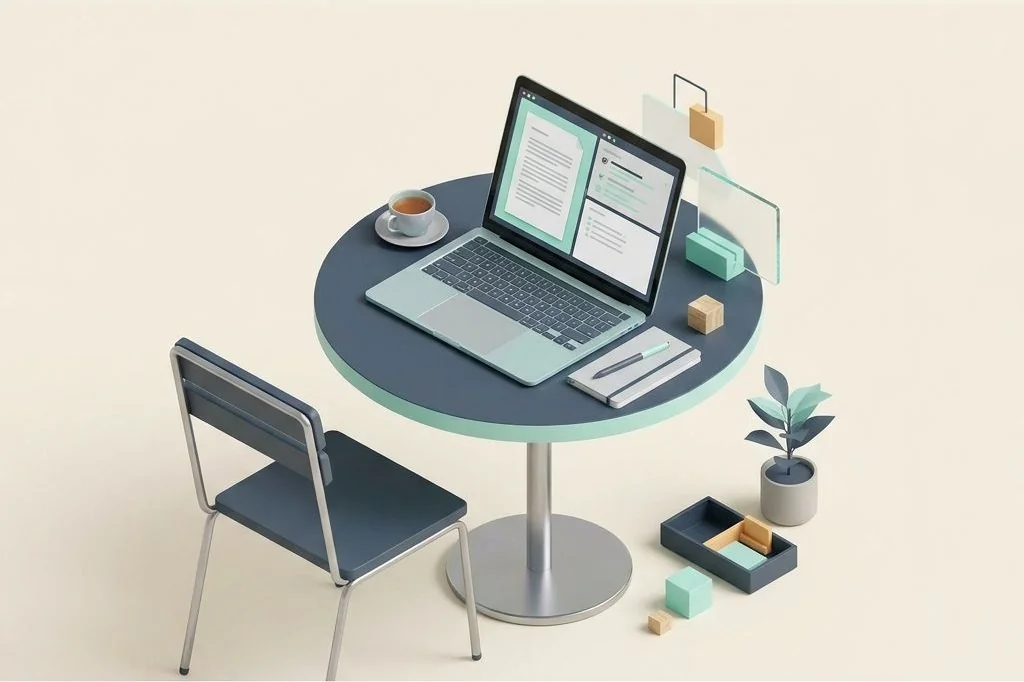
Working from a small coffee shop table, an airport lounge, or a train seat means you cannot bring dual twenty-seven-inch monitors along for the ride. You have only the compact glass of your thirteen-inch or fourteen-inch MacBook. When space is that tight, opening four overlapping windows instantly turns your screen into an unreadable tangle of title bars and clipped text. Mastering single screen laptop window management is about making a small screen feel vast by swapping chaotic clutter for disciplined spatial layering.
Key Takeaways
Here are the essential tactics for getting maximum utility from a compact MacBook screen:
- Treat your laptop screen like a compact travel sketchbook where only one or two focused tasks fit at a time.
- Auto-hide the macOS Dock and menu bar to reclaim valuable vertical pixels for actual content.
- Adopt a single-task fullscreen philosophy paired with rapid three-finger Space transitions.
- Use clean fifty-fifty split view snapping only for direct reference tasks, avoiding cramped thirds or quarters.
- Rely on keyboard-driven command palettes to open and switch apps without needing a visible Dock.
- Adjust scaled display settings to more space to gain breathing room on Retina panels.
- Establish a single-key shortcut to hide inactive background applications instantly.
The Traveler’s Notebook Metaphor
Imagine packing for an international flight with a lightweight carry-on backpack. In that small bag, you cannot pack your entire wardrobe, your winter boots, and your collection of heavy hardcover books. You pack only the essential clothing items, folding them flat and sliding them into organized packing cubes. When you need a shirt, you reach into the specific cube, take it out, and leave the rest zipped away.
A compact MacBook screen is that travel backpack. On a giant desktop display, you can leave reference books and scratch pads lying open everywhere. On a thirteen-inch screen, leaving four applications open side by side crushes each window until none of them are usable. Learning to fold your workflows into neat digital layers allows you to travel light without sacrificing speed across ezefficiency.com.
Reclaiming Lost Pixels from System Chrome
On a thirteen-inch display, vertical pixels are your most precious commodity. Standard laptop screens have an aspect ratio that leaves roughly eight to nine hundred vertical points of usable space. If your Dock sits permanently anchored at the bottom of the screen and the menu bar remains visible at the top, those static elements consume nearly twenty percent of your vertical canvas.
You can instantly liberate that space with two simple adjustments:
- Auto-hide the Dock: Setting your Dock to automatically hide makes it disappear until you sweep your cursor to the edge. Better yet, launching applications with a keyboard command bar eliminates the need to view the Dock entirely.
- Auto-hide the menu bar: Enabling menu bar hiding gives your active application full bleed from the top glass edge down to the bottom bezel, expanding your reading view significantly.
For additional techniques on eliminating top-panel clutter, consult our detailed analysis on designing a zero clutter menu bar for ultrawide and laptop screens.
The Power of Focused Single Task Spaces
Trying to multitask on a compact screen by arranging four tiny windows into quarters is an exercise in frustration. Columns become so narrow that web layouts collapse into awkward mobile versions, hiding navigation menus and truncating paragraphs.
The superior architectural strategy for laptop productivity is single-task focus. Give each active tool its own dedicated virtual desktop. Your text editor claims Space 1 in full glory. Your web browser claims Space 2. Your messaging channel claims Space 3. Gliding smoothly between these spaces using three-finger trackpad gestures feels effortless, providing complete visual calm without window overlap. This spatial model forms the core of our strategy in organizing mac spaces by work context instead of chaos.
When Split Screen Snapping Makes Sense
While single-task full screen mode is ideal for deep composition, certain tasks demand direct side-by-side comparison. Translating text, transcribing audio notes, or writing code while viewing a terminal preview requires having two windows visible at the exact same moment.
On a thirteen-inch or fourteen-inch screen, only a fifty-fifty split works cleanly. Snapping one window to the left half and one to the right half divides your glass into two tall columns of roughly seven hundred pixels each. Most modern web applications and text editors render comfortably at seven hundred pixels without broken layouts. Apple’s native Split View handles this side-by-side arrangement smoothly, as outlined in the Apple Split View Documentation. For keyboard users who want to snap these halves instantly without dragging, follow our tips on building a frictionless keyboard first window system on mac.
Enabling the More Space Resolution Setting
MacBook Retina displays ship from the factory configured with a default scaling setting that prioritizes large, easily readable text. While comfortable for casual browsing, this default setting makes the usable desktop feel artificially small.
Opening System Settings, navigating to Displays, and selecting the More Space scaling option renders interface elements slightly smaller while maintaining full Retina sharpness. On a thirteen-inch MacBook, this setting increases your virtual canvas from roughly 1280 by 800 up to 1440 by 900 or higher. That subtle twenty percent expansion provides the exact extra breathing room needed to fit two full text columns comfortably without line wrapping. To understand how scaling affects visual comfort, review our breakdown on choosing between native resolution and fractional scaling on mac displays.
Eliminating Background Distraction with App Hiding
When you are working inside an application on a small display, having the edges of other applications peeking out from behind creates constant visual chatter. Instead of minimizing windows to the Dock – which creates slow animations – use the native Command plus Option plus H shortcut.
This keystroke instantly hides every single background application on your Mac except the one you are actively working in. In less than half a second, your desktop clears completely, leaving only your active tool surrounded by clean wallpaper. It delivers the focus of a fullscreen window while preserving your standard desktop flexibility. This forms a natural bridge to our core ideas in macos window management architecture.
Streamlining Browser Tabs on Portable Screens
A cramped laptop display magnifies browser tab chaos. If you keep forty tabs open across the top of your browser window, each tab shrinks to a sliver that shows neither the webpage title nor the website icon. Clicking between them becomes pure guesswork.
Adopting vertical tab sidebars or tab suspension extensions transforms this experience on a small display. Vertical tabs allow you to read complete page titles at a glance, and closing the sidebar collapses the tab strip into a neat column of tiny icons. Pairing vertical tabs with clean half-screen snapping lets you read documentation and draft notes simultaneously without horizontal crowding.
Frequently Asked Questions
Does selecting More Space drain more battery on a MacBook?
The battery impact of the More Space scaling setting is completely negligible. Apple Silicon processors handle the slight rendering adjustment with dedicated hardware scaling engines that sip microscopic amounts of power.
Should I use third-party window managers on a small laptop screen?
Yes. A lightweight snapping utility configured with simple half-screen keyboard shortcuts makes arranging side-by-side notes much faster than manual trackpad dragging, even on a thirteen-inch screen.
How do I quickly switch between multiple open windows of the same app?
Pressing Command plus the tilde key (the key directly above Tab) cycles through open windows of your current application instantly, making it easy to toggle between two documents without touching your trackpad.
By treating your compact MacBook screen as a disciplined series of focused layers rather than a crowded table, you can produce deep, high-quality work anywhere the day takes you.