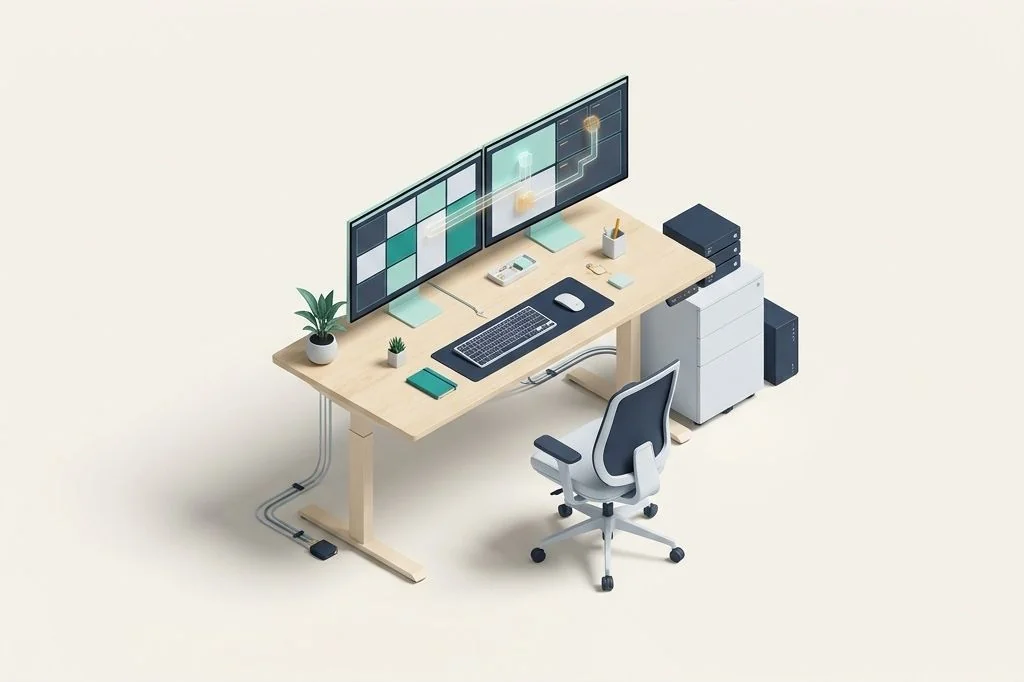
When you place two or three physical desks side by side in a room, you instantly gain massive room to spread out your books, notebooks, and pens. But if you simply toss papers across both tables without any order, you spend half your afternoon searching for that one missing sheet. Adding a second or third computer screen creates the exact same puzzle. Without a clear system, windows pile on top of each other, edges get lost beneath taskbars, and you waste valuable energy constantly dragging rectangular boxes back and forth with your mouse. Setting up lightweight window management for multi monitor desktop setups turns that sprawling chaos into neat, self-arranging workspaces that feel as effortless as sliding drawers into a clean desk.
Key Takeaways
Here are the essential foundations for running organized multi-display workspaces:
- Think of dual monitors as two connected physical desks where each screen holds a dedicated category of tasks.
- Lightweight window managers act like magnetic desk dividers that snap pages into place without eating away your computer memory.
- Assigning a primary focus screen and secondary reference screens stops your eyes from darting around aimlessly.
- Simple keyboard shortcuts move windows between displays in a fraction of a second, completely bypassing tedious mouse dragging.
- Keeping utility software small ensures your computer starts instantly and stays cool throughout long work sessions.
The Multi-Desk Metaphor: Understanding Screen Real Estate
Imagine sitting in a classroom with two wooden tables pushed together. The table directly in front of you holds your active homework notebook. The table off to your right holds your heavy textbook, pencil case, and ruler. Because the homework sits straight ahead, your neck stays relaxed and your attention stays locked on writing. When you need a fact, you glance to the right, read the line, and return to writing. You never stack the heavy textbook directly on top of your open homework notebook.
Computer monitors work on this identical spatial principle. Your main monitor should serve as the active drawing paper where your primary document, coding editor, or primary project lives. Your secondary display functions as the reference shelf where chat apps, background music players, or reference documents stay neatly docked. When you adopt smart digital desk organization, you prevent overlapping windows from hiding your vital reference notes.
The problem arises when you rely on manual dragging to position those digital sheets. Every time you open a browser, it opens wherever it wants, often stretching across both screens awkwardly or burying your active notes. A lightweight manager acts like pre-cut wooden trays sitting on each desk. When you launch an app, it drops right into its assigned tray without a single click.
Why Heavy Desktop Utilities Slow Down Your Flow
Your computer memory, often called RAM, is like the actual physical surface of your desk. A computer with sixteen gigabytes of memory has a medium-sized desk, while a machine with sixty-four gigabytes has a large boardroom table. Every program you open takes up a chunk of that tabletop surface. If you install heavy window management suites with fancy animations, three-dimensional effects, and bloated background services, those tools alone can occupy a huge corner of your desk before you even start actual work.
When the desk gets completely covered in clutter, your computer must shuffle items into the filing cabinet (your SSD storage drive) just to make room to breathe. This constant shuffling causes noticeable lag, stuttering mouse movements, and warm laptop fans. That is why I favor lean, minimalist tiling tools that consume less than thirty megabytes of memory. They run silently like a quiet mechanical clock, maintaining structural boundaries across three screens without stealing memory from your heavy creative software.
Architecting Functional Zones Across Displays
Rather than letting apps float freely, dividing each display into functional geometry builds instant muscle memory. I divide multi-monitor environments into three distinct spatial archetypes:
- The Focus Zone (Center Display): Occupies a sixty-to-eighty percent column in the middle of your primary monitor. This is where your eyes rest ninety percent of the day.
- The Sidecar Zone (Secondary Display): Splits into vertical halves or horizontal quadrants for communication channels, documentation files, and file explorers.
- The Ambient Shelf (Auxiliary Display): Stays reserved for passive feeds, audio controls, or system temperature monitors that require zero direct typing.
When you contrast this structured arrangement with the differences between automatic desktop tiling vs manual window snapping, you realize that automatic placement eliminates dozens of micro-decisions every hour. You stop thinking about window borders and focus entirely on creating.
| Display Role | Physical Position | Recommended Grid Layout | Typical Application Types |
|---|---|---|---|
| Primary Canvas | Direct eye-level center | Single wide pane or 70/30 split | Code editors, word processors, video timelines |
| Secondary Reference | Left or right side (angled 30°) | Dual vertical 50/50 split | Web browsers, PDF documentation, research sheets |
| Vertical Companion | Portrait orientation (rotated 90°) | Triple stacked horizontal strips | Team chat streams, terminal logs, reading feeds |
Navigating Across Displays with Keyboard Precision
Reaching for your mouse to drag a window from screen one to screen two takes nearly two full seconds. During that time, your hand leaves the keyboard, your eyes track an arrow across empty glass, and your mental train of thought derails. Repeating that action sixty times a day wastes hundreds of seconds of pure cognitive friction.
By pairing your multi-display layout with dedicated hotkeys, shifting a window between screens happens in the blink of an eye. Pressing a single key combination shoots an application from your left monitor directly into the center tile of your right monitor. Official system utilities like Microsoft PowerToys FancyZones provide built-in grid templates, while modern tools like GlazeWM bring automatic tiling inspired by minimalist developer environments. If you also utilize wide panoramic displays, learning the principles of configuring custom grid zones for ultra wide monitors ensures your windows never stretch out into unreadable mile-wide lines of text.
Frequently Asked Questions
Does running multiple monitors slow down my computer?
Driving extra screen pixels requires a tiny bit of additional graphics power, but modern computer chips handle two or three standard displays effortlessly. The real cause of slowdowns is not the extra physical screen; it is opening twenty extra heavy apps simply because you have the visual room to display them. Keeping background software lightweight prevents any noticeable drop in speed.
Can I use different grid layouts on different monitors?
Yes. Capable window managers allow you to assign independent grid templates to each physical display. For instance, your horizontal landscape monitor can use a wide two-column split, while a rotated vertical monitor can use a three-row stacked shelf layout. Each screen operates with its own distinct geometry.
What is the simplest way to move windows between screens without installing extra software?
Windows includes a native shortcut for rapid display hopping. Holding down the Windows key and Shift while tapping the Left or Right Arrow key instantly moves the active window to the adjacent screen, maintaining its exact relative position without touching the mouse.
Organizing your digital workspaces with lightweight tiling creates a peaceful, distraction-free environment across all your displays. By treating each screen as a dedicated surface and letting automated rules handle the borders, you can keep your desk pristine and your mind fully focused on your best work.