Stepping up to an ultrawide monitor feels like unrolling a massive panoramic canvas across your desk. The sheer amount of glass is breathtaking, promising boundless room for all your open applications. But after a few days of working on a thirty-four-inch or forty-nine-inch curved display, many users discover an unexpected downside. Maximizing an application across that entire span stretches sentences thirty inches wide, turning a simple article into an exhausting marathon of head turning. Mastering ultrawide monitor window management macos requires abandoning the maximize button and organizing your glass like a pilot’s cockpit.
Key Takeaways
Here are the essential rules for organizing an ultrawide display on macOS without neck strain:
- Never maximize a single window across the full panoramic width of an ultrawide monitor.
- Adopt a three-column cockpit architecture that positions your primary work directly in the central fifty percent.
- Use narrow peripheral wings for auxiliary tools like messaging, notes, and music players.
- Ensure comfortable reading line lengths by restricting text columns to roughly eighty characters per line.
- Pair ultrawide layouts with quick window re-centering shortcuts to pull background tasks into focus without dragging.
- Maintain proper viewing distance by pushing the monitor back roughly the length of your outstretched arm.
The Airplane Cockpit Metaphor
Imagine climbing into the cockpit of an airplane. The flight instruments are not scattered across a single giant flat table where the pilot has to crawl from side to side to check altitude and speed. The primary flight instruments – the horizon indicator, the airspeed dial, and the compass – sit directly dead center in front of the pilot’s eyes.
The secondary instruments, like cabin temperature switches and fuel gauge monitors, sit on the angled side consoles. The pilot glances at them with their peripheral vision, but their head stays centered facing forward. An ultrawide monitor functions best when treated exactly like that cockpit. Your primary creative tool lives in the center viewport, while your auxiliary gauges flank you quietly on the sides across ezefficiency.com.
Why Maximizing Windows Fails on Ultrawide Displays
Standard operating systems teach us to click the green zoom button to maximize an application. On a fifteen-inch laptop, maximizing a window makes sense because screen real estate is scarce. On a thirty-four-inch or forty-nine-inch ultrawide display, clicking maximize creates digital chaos.
Typographic research shows that human eyes read most comfortably when a line of text contains between fifty and eighty characters. When you stretch a web browser or word processor across an ultrawide monitor, a single sentence spans over three hundred characters. Reading that sentence forces your neck to swing from the far left bezel to the far right bezel like a spectator at a tennis tournament. Within two hours, neck fatigue and eye strain set in. Structuring your space into distinct columns as detailed in macos window management architecture eliminates this physical toll.
The Three Column Cockpit Layout
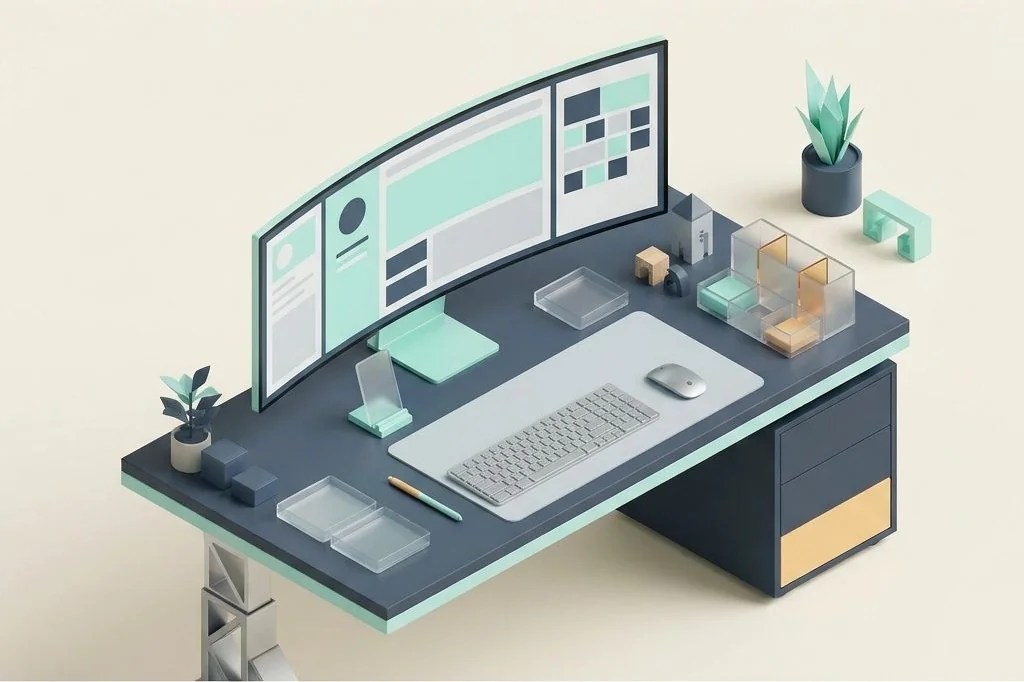
The most ergonomic and productive configuration for an ultrawide screen is the three-column division. Rather than splitting the display into equal thirds, an asymmetric twenty-five, fifty, twenty-five distribution produces the most natural focal balance.
The central fifty percent stage
The middle half of your display sits directly aligned with your nose and spine. This is your main stage. Your active text document, coding environment, video timeline, or primary research tab belongs here. Its dimensions match the proportion of a high-end standalone monitor, giving you ample room to work without forcing head movement.
The left reference wing
Occupying the leftmost twenty-five percent of the screen, this column holds your research material, technical manuals, or project briefs. You can glance at it quickly to confirm a fact, but because it sits in your peripheral arc, it never distracts you from your central canvas.
The right utility and communication wing
The rightmost twenty-five percent holds ambient communication tools, such as team chats, your daily task list, or audio controls. It stays visible so you are aware of notifications, but its narrow profile prevents conversations from dominating your visual field. To understand how to control these zones with pure keyboard chords, explore our guide on building a frictionless keyboard first window system on mac.
Taming the Curved Display Radius
Most ultrawide monitors feature a physical curve, rated with numbers like 1800R or 1000R. That number indicates the radius of the circle in millimeters if the curve were extended all the way around. A tighter curve, like 1000R, matches the natural peripheral curvature of human vision closely.
To take full advantage of this curvature, your seating distance must match the monitor’s focal depth. If you sit too close, the outer edges bend behind your visual field, forcing you to crane your neck. If you sit too far away, text becomes too tiny to read comfortably. Positioning your eyes between twenty-eight and thirty-four inches from the glass allows the curved edges to meet your peripheral vision naturally without distortion. The ergonomic foundations of display curvature and focal distance are thoroughly documented by the Human Factors and Ergonomics Society.
Combining Ultrawide Real Estate with Virtual Spaces
An ultrawide monitor offers immense width, but relying on a single desktop workspace can still lead to clutter if you juggle multiple distinct projects throughout the day. Layering an ultrawide monitor with macOS Spaces creates an orderly series of panoramic rooms.
You can dedicate Space 1 to your core daily production cockpit, Space 2 to client communication and correspondence, and Space 3 to financial analytics or deep research. Swiping between these panoramic rooms keeps distinct workflows completely isolated without needing a messy web of overlapping windows. Discover how to plan your virtual rooms in our upcoming analysis on organizing mac spaces by work context instead of chaos.
Menu Bar Positioning and Navigation Flow
On an ultrawide screen, clicking an icon in the top-right corner of the menu bar requires moving your mouse cursor over thirty inches from left to right. Doing this repeatedly throughout the day feels like running laps across an Olympic swimming pool.
Reducing mouse dependence by leveraging keyboard launchers and trimming unnecessary menu bar icons keeps your physical movements compact and efficient. For practical strategies on cleaning up your top panel, consult our guide on designing a zero clutter menu bar for ultrawide and laptop screens.
Frequently Asked Questions
Should I use a 21:9 or a 32:9 ultrawide monitor for productivity?
A 21:9 display (usually thirty-four inches) provides the sweet spot for most professionals, offering room for three comfortable columns without overwhelming your desk. A 32:9 super-ultrawide display (forty-nine inches) is equivalent to two full monitors side by side and requires aggressive column management to avoid neck strain.
Can I split an ultrawide monitor into two virtual displays on macOS?
Many ultrawide monitors feature Picture-by-Picture (PBP) hardware modes that accept two separate cable inputs from your Mac, causing macOS to treat the single physical panel as two distinct side-by-side monitors without software overhead.
How do I prevent my mouse cursor from getting lost on an ultrawide screen?
macOS includes a built-in feature that briefly enlarges the cursor when you shake your mouse or trackpad rapidly. Additionally, slightly increasing your default pointer size in system accessibility settings makes locating your cursor effortless across vast panoramic glass.
By organizing your ultrawide screen into a disciplined three-column cockpit, you transform an overwhelming sea of pixels into an ergonomic command center that keeps your neck relaxed and your mind sharp.