When you install a new utility on your Mac – whether it is a color dropper, an image compressor, a VPN client, or a currency converter – the software almost always asks to place an icon in your top menu bar. Over a year of work, your status area transforms into an unorganized museum where passive monitoring gauges sit shoulder-to-shoulder with tools you only click once every three weeks. Without a clear structural framework, your attention splinters and your screen becomes visually chaotic. Focusing on separating persistent status indicators from ephemeral tools restores architectural discipline, ensuring that only vital data remains in view while action tools appear only when called.
Key Takeaways
Here are the fundamental rules for structuring your menu bar hierarchy:
- Persistent indicators resemble a coastal lighthouse; they shine steady light continuously to keep your ship from crashing into rocks.
- Ephemeral tools function like a box of matches in your pocket; you strike a match for three seconds to light a candle, then return the box to your pocket.
- Mixing passive telemetry gauges with interactive action buttons creates severe visual confusion and cognitive fatigue.
- Routing ephemeral utilities through global command palettes frees up valuable horizontal screen space on laptops.
The Lighthouse vs Pocket Matches Metaphor
To establish a clean hierarchy on your screen, you must understand the deep functional difference between two categories of digital instruments: persistent indicators and ephemeral tools.
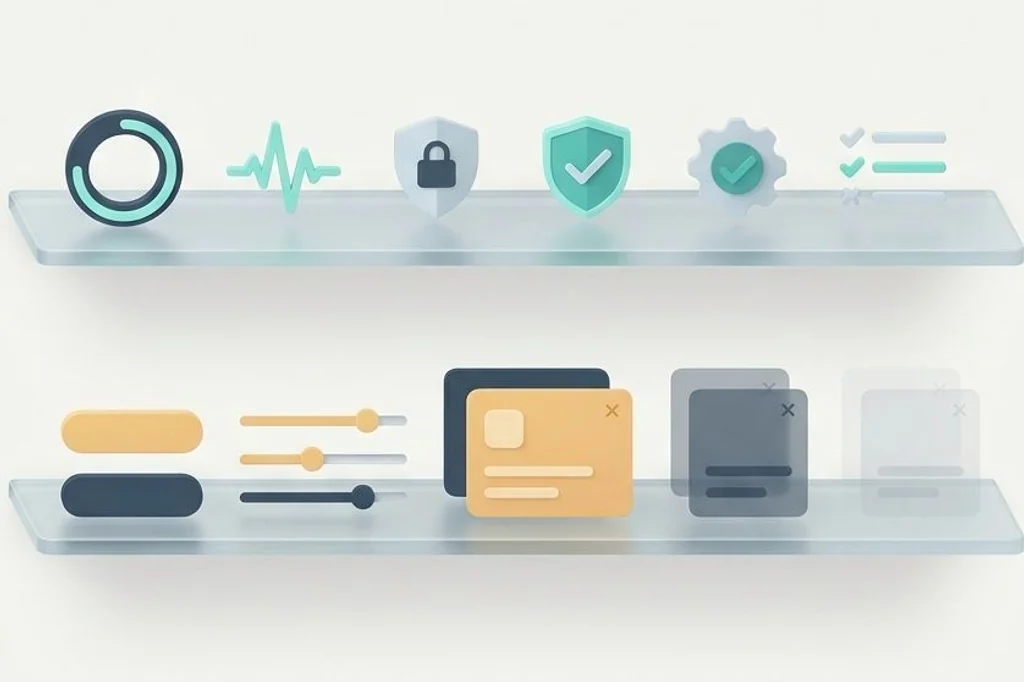
A persistent indicator is like a stone lighthouse standing on a rocky shoreline. The lighthouse beam shines all night long without stopping. Sailors do not walk up to the lighthouse and press buttons; they simply glance at the steady beam of light to confirm their distance from shore. On your computer, your battery level, your network connection, and your clock are lighthouses. They provide continuous, non-actionable status data that keeps your machine running safely.
An ephemeral tool, by contrast, is like a box of matches kept inside your pocket. When you want to light a candle on your desk, you reach into your pocket, pull out the box, strike one match, light the candle, and immediately put the box back into your pocket. Nobody walks around holding a box of matches in their outstretched hand all day long. Having a color picker, an audio input switcher, or a screenshot tool pinned permanently to your top bar is the digital equivalent of holding that box of matches in front of your face eight hours a day. Following practical digital efficiency principles requires putting the matchbox away until you need fire.
The Architectural Danger of Category Confusion
When you mix lighthouses with pocket matches on the same narrow horizontal strip, your brain experiences cognitive friction. Every time your eyes glance upward to check the time, you are forced to process eight different interactive action buttons along the way. You see the cloud storage sync icon, the note taker, the calculator shortcut, and the microphone mute button.
Apple addresses this distinction directly in the official Apple Human Interface Guidelines for the menu bar, emphasizing that status menus should represent persistent system state rather than act as arbitrary app docks. When status indicators and action buttons are scrambled together, your peripheral vision is repeatedly distracted by false affordances – visual elements that invite clicking when you should be writing or coding.
By enforcing clear separation, you dramatically improve focus. If you want to strip your visible status area down to pure essentials, implementing the three icon rule for a distraction free macos top bar provides a proven baseline that eliminates ninety percent of visual distractions.
Architectural Comparison: Persistent Indicators vs Ephemeral Tools
Evaluating the mechanical characteristics of each category clarifies where each tool belongs on your machine.
| Evaluation Dimension | Persistent Status Indicators | Ephemeral Action Tools |
|---|---|---|
| Primary Function | Passive, continuous state awareness | Active, on-demand task execution |
| Interaction Frequency | Zero clicks; glance only | Interacted with once or twice a day |
| Visual Ideal | Always visible in far screen corner | Completely invisible until summoned |
| Optimal Trigger Method | Static screen rendering | Global keyboard shortcut or palette query |
| Memory Behavior | Tiny compiled OS thread (< 15 MB) | On-demand thread; sleeps when idle |
Notice the stark divergence in interaction patterns. A status indicator requires zero clicks throughout your day; you only look at it for a fraction of a second. An ephemeral tool requires deliberate interaction: clicking a button, selecting a value, or copying a code. Sticking interactive buttons in an area designed for passive scanning degrades the utility of both categories. For users who need rapid access to hidden utilities without using a mouse, our guide on keyboard shortcuts for accessing hidden menu bar extras demonstrates how hotkeys bridge this gap effortlessly.
Routing Ephemeral Utilities Away from the Top Bar
Once you decide to evict ephemeral tools from your persistent menu bar, where should they go? Modern macOS provides three superior homes for on-demand tools that never clutter your visual horizon:
Home 1: The hidden collapsible drawer
If an ephemeral tool truly requires a visual drop-down interface – such as an audio source selector or a VPN country switcher – place it inside a collapsible menu bar drawer. The tool rests quietly out of sight behind an invisible divider. When you need it, a quick hover or hotkey slides the drawer into view, and clicking your action automatically closes the drawer again.
Home 2: Global keyboard shortcuts
For tools that perform instant actions – such as capturing a screenshot, clearing the clipboard, or centering a window – do not use an icon at all. Open the application preferences and uncheck “Show icon in menu bar”. Map the action to a memorable shortcut like Command-Shift-4 or Option-C. The utility operates with lightning speed, and your screen remains completely spotless.
Home 3: Central command palette actions
For tools you use occasionally – such as converting image formats, generating a random password, or flushing system caches – rely on your central command launcher. Press Command and Space, type “pass”, copy your generated credential, and return to your work. You never have to hunt for a microscopic icon in a crowded top bar.
Frequently Asked Questions
Why do developers always put icons in the menu bar by default?
Software developers want their product to stay top-of-mind. Having an icon pinned to your top bar acts as permanent advertising for their tool. Disciplined power users immediately open settings and disable the menu bar icon unless the utility provides genuine persistent value.
Does an application continue to run if its menu bar icon is hidden?
Yes. Disabling a visible menu bar icon in an application preferences simply stops the program from drawing pixels in your status bar. Its background listening hooks, global hotkeys, and automated services continue to run with complete reliability.
Can I classify my calendar as a persistent indicator?
If you genuinely glance at your next meeting time dozens of times each hour, a compact calendar text snippet can serve as a persistent indicator. However, if you only inspect your schedule before lunch and at the end of the day, tucking the calendar into a hidden drawer or command bar query preserves valuable screen calm.
Establishing a strict boundary between persistent indicators and ephemeral tools transforms your Mac from an unruly carnival into a calm, focused workshop. By reserving your screen for what is truly vital, your digital environment reflects and supports your highest creative intentions.