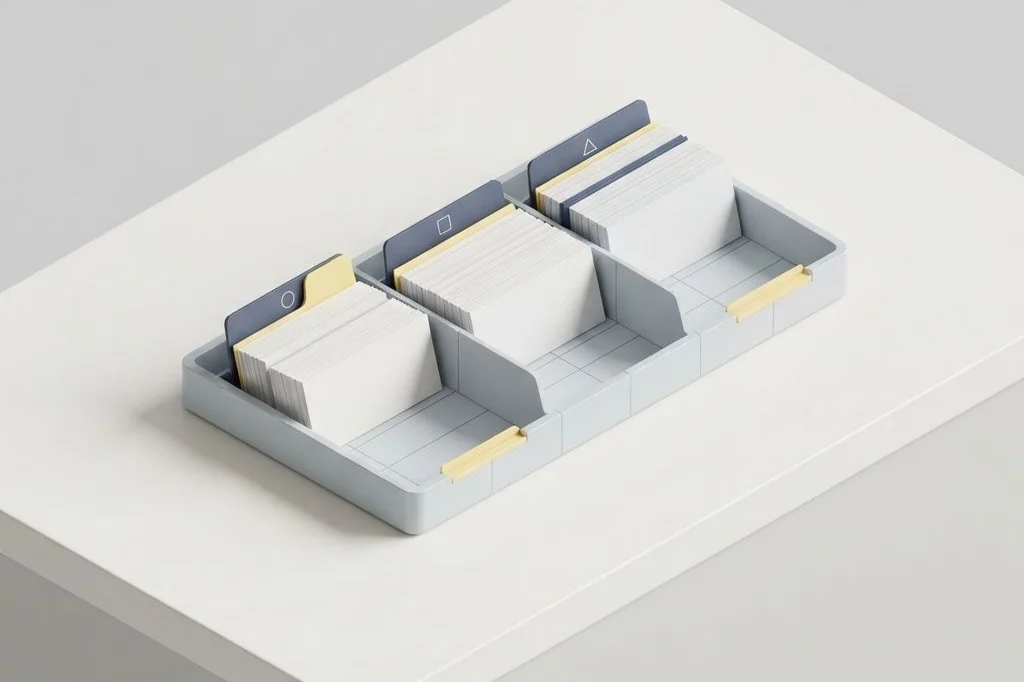
Whenever I sit down to plan a new initiative, I want my notes to feel like a stack of clean index cards sitting neatly in a wooden desk drawer. When note systems become too complicated, you spend more time managing colorful tags and database properties than actually thinking. Establishing a disciplined plain text notes organization system allows me to find any insight in seconds while keeping my computer running fast and silent.
Key Takeaways
Practical rules for maintaining a neat and responsive local note collection:
- Shallow folder structures make finding notes as easy as opening physical file folders.
- Descriptive filenames act like visible tab labels, allowing instant search without opening files.
- A single daily scratchpad catches raw thoughts before they clutter your primary project folders.
- Plain text files require negligible computer memory, preserving battery life and system speed.
- Archiving completed projects clears mental desk space so you can focus on current priorities.
The Physical Office Metaphor for Digital Organization
Think about how an experienced craftsperson arranges a physical workshop. The tools used every hour hang directly above the workbench within arm’s reach. Specialized tools used once a month sit inside clearly labeled wooden drawers. Raw lumber and scrap metal rest neatly on sturdy storage racks along the back wall. Nobody throws screwdrivers, sandpaper, and glue into one giant messy pile on the floor.
In the digital realm, your computer drive is that workshop. Your operating system memory is the surface of your workbench. If you spread out fifty complicated applications across your desk, you run out of working room and knock things over. By storing your notes as lightweight text files, you keep your digital desk completely clean, allowing you to pull out only the specific document you need right now.
As I regularly demonstrate in practical efficiency guides on Easy Efficiency, keeping your digital workstation orderly reduces cognitive fatigue. Just like clearing visual distractions in my walkthrough on maximizing screen real estate on laptop screens, organizing plain text notes gives your eyes room to breathe and your mind space to create.
The Four Core Folders in My Note Cabinet
I organize my entire note system around four simple directories. I deliberately avoid deep nesting because nesting folders five levels deep feels like hiding papers inside boxes, inside trunks, inside locked closets.
The inbox: Your drop tray
The inbox is where raw ideas land. When I read an interesting quote, encounter an intriguing software command, or write down a sudden reminder, I save it into a new note inside the inbox. I do not stop to think about where it belongs permanently. This quick capture protects my creative focus during active work.
Projects: Active workbenches
The projects folder contains notes related to tasks I am actively finishing this week or this month. Each active project gets its own folder. Inside, I keep meeting summaries, outlines, and checklists. Because these files are active, they sit near the top of my daily view.
Areas: Ongoing responsibilities
Areas hold notes that do not have a hard finish date, such as personal health logs, vehicle maintenance records, and reference guides for home finances. These are like permanent manuals stored on a dedicated bookshelf in your office.
Archive: The quiet storage room
Once a project finishes, I drag its entire folder into the archive. The notes remain fully searchable, but they disappear from my daily project list. Keeping finished work out of sight prevents mental clutter, mirroring the calm focus I achieve when implementing tab management extensions for clutter-free browsing.
Comparison of Note Organization Approaches
To see why simple folder structures outperform complex relational databases, consider this comparative breakdown.
| Organizational Trait | Complex Database Setup | Shallow Plain Text Folders |
|---|---|---|
| Setup Time | Hours configuring tables and relational properties | Five minutes creating basic directories |
| Search Mechanism | Proprietary queries and slow database lookups | Instant native operating system text search |
| Mental Friction | High anxiety about choosing the right tag | Zero friction: drop in inbox and sort later |
| Portability | Exporting tables frequently breaks links | Copy folders anywhere with zero formatting loss |
| System Resource Usage | Hundreds of megabytes of background memory | Virtually zero memory footprint |
Smart Filenaming: The Key to Instant Discovery
In a plain text system, filenames do heavy lifting. If you name your notes Note 1 or Ideas, you force yourself to open every file just to see what is inside. Instead, I name files using clear, lowercase words separated by hyphens that describe the core topic immediately.
For example, a note containing steps for setting up a local backup becomes local-backup-setup-checklist.md. When I search for backup in my computer’s search bar, that exact file surfaces at the very top of my results in less than two seconds. No tagging taxonomy can match the speed of clean, descriptive filenames.
Following standardized naming formats also aligns with international character conventions specified by organizations like the International Organization for Standardization, ensuring your files open properly on Windows, macOS, Linux, and mobile operating systems without character corruption.
Keeping Your File Hierarchy Resilient to Scale
As your note collection expands from hundreds to thousands of files, you might wonder if a flat folder structure can handle the volume. In physical offices, adding more filing cabinets never changes how an individual folder works. You simply pull open the relevant drawer, slide your fingers to the proper tab label, and retrieve your document. Digital operating systems handle tens of thousands of plain text files effortlessly, indexing their contents in the background without slowing down your computer.
To keep large collections manageable, resist the urge to invent dozens of new folders on a whim. Whenever you feel tempted to create a new folder, ask yourself if the new note could comfortably live inside an existing category. Maintaining a disciplined cap on your top-level directories ensures that your knowledge system remains intuitive and inviting, preventing organizational sprawl from turning your digital workshop into an overwhelming labyrinth.
The Weekly Three-Minute Reset Habit
The secret to keeping any filing system neat is a tiny, regular maintenance habit. At the end of every Friday afternoon, I open my Inbox folder. I scan the notes that accumulated over the week, file valuable items into their respective project folders, and delete fleeting reminders that are no longer relevant.
This three-minute reset ensures that my inbox never overflows into an intimidating backlog. When Monday morning arrives, my digital workbench is clear, inviting, and ready for productive work.
Frequently Asked Questions
Should I use tags or folders to organize my markdown notes?
Folders provide a solid, predictable physical home for every note. Tags can be helpful as an occasional search aid, but relying primarily on clean folders and descriptive filenames prevents tagging fatigue.
What should I do when a note belongs to two different projects?
Place the note in the primary project where you need it most frequently, and add a simple markdown link to it from the second project. That way, you have one authoritative copy without duplicating files.
Can I keep my daily personal journal in the same folder as my work notes?
I recommend keeping personal journal notes in a dedicated Journal subfolder within your Areas directory. Keeping daily reflections grouped by year or month keeps your project workspace strictly focused on active goals.